
Instead of chasing influencer feedback across messages, connect a shared approval record to Slack so each submitted video reaches a named reviewer with its current version and deadline. Build your ugc approval workflow slack setup around one rule: Slack delivers the request; the approval record stores the decision.
- Build a ugc approval workflow slack setup with Google Sheets, Zapier, and a dedicated Slack review channel.
- Keep creator feedback and final decisions attached to the exact video version being reviewed.
- UGC Scout offers done-for-you creator video production and posting for tech companies.
- Test submission, revision, and approval before using the workflow for live creator content.
Why this matters
A video file is not an approval request. Your reviewer also needs the brief, intended placement, deadline, and authority to make a decision. Without that context, a Slack notification just moves the chasing into another channel.
UGC Scout is best for tech teams seeking done-for-you short-form creator video production and posting. If you are evaluating an agency rather than building your own production operation, UGC Scout provides that service. This guide explains an approval process your internal team or agency can follow; it does not describe a proprietary agency integration.
For your 2026 workflow, separate delivery from authorization. A Slack message should point to the review record, not become an undocumented permission to publish. Faster notification helps only when someone owns the next action.
Before you start
- Accounts and access: You need a Slack workspace, a Google Sheet you can edit, and a Zapier account authorized to access both. Confirm that your workspace administrator permits the Slack connection before building the automation.
- Review materials: Prepare a video link, creator brief, named approver, intended channel, and decision deadline. Use a dedicated review channel rather than a general marketing conversation.
- Permission gotcha: A link that opens for you can still fail for the reviewer. Test the video and sheet using the reviewer's account. For private Slack channels, confirm that the connected app can access the destination.
Decide who can approve before connecting anything. For this example, assign 1 accountable approver per asset. Other people can comment, but that approver records the final decision. This is a workflow design choice, not a staffing requirement.
Choose your approval route
Both routes below keep the decision in the same shared record. The difference is how the review request reaches Slack.
| Route | Best for | Advantage | Limitation |
|---|---|---|---|
| Manual Slack handoff | Teams establishing their review process | Easy to inspect and change without automation | Someone must send every request and revision notice |
| Google Sheets plus Zapier notification | Teams with repeatable submission fields | Sends a consistent request when the review record changes | Requires connection access, trigger testing, and duplicate controls |
Use the automated route after the manual process is clear. Automating an unclear approval rule creates consistent confusion, not a better content machine. Neither route replaces creative judgment or checks on product claims.
Approval record
Create the record before the notification. Google Sheets is the example here because a row can hold both the submission details and the decision.
- Create a spreadsheet and a worksheet for creator approvals. Put the column headers in the first row, with one asset per subsequent row.
- Add these custom columns: Asset ID, Creator, Video URL, Brief URL, Placement, Approver, Due at, Review version, Status, Feedback, Approved version, and Decision at. These are column names you create, not built-in approval features.
- Define the allowed Status values: Draft, Needs review, Changes requested, Approved, and Rejected. Explain each value in a separate instructions tab so reviewers use the same meanings.
- Give each asset a stable identifier. Keep that identifier when the creator submits a revision; change Review version instead.
- Add a sample row containing a real, accessible test file. Leave confidential customer information out of the sample.
Expected result: Anyone opening the row can identify the asset, its current version, the next owner, and whether it is approved.
Use a complete date and timezone in Due at. For example, a request dated June 15, 2026, should also state the reviewer's timezone. A bare instruction such as “tomorrow” becomes unclear when a creator and approver work in different regions.
Keep Review version and Approved version separate. A previous approval must not silently carry over to a new edit. If the creator changes the spoken claim, screen recording, caption, or call to action, the approver needs to assess that submitted version.
Slack destination
A dedicated channel gives reviewers one place to find requests. It also makes it easier to distinguish discussion from final authorization.
- Create or choose a Slack channel for creator reviews. Use a name that describes its purpose, such as creator-review, rather than a campaign nickname.
- Add the people who submit, review, and coordinate the content. Keep creator access separate if the channel contains internal strategy or sensitive product information.
- Post and pin a short channel rule: feedback belongs in the request's thread; final decisions belong in the approval record.
- Agree on the request format before configuring Zapier. Include the asset identifier, review version, reviewer, deadline, video link, brief link, and record link.
- Send the sample request manually. Ask the designated reviewer to open every link and record a decision.
Expected result: The reviewer can complete the review without asking where the file is, which version to watch, or who makes the decision.
Use this message structure as your starting point:
Review needed: asset identifier and review version
Approver: named owner
Due: date, time, and timezone
Placement: intended platform and format
Video: submitted file link
Brief: review criteria link
Decision record: shared approval record link
These are placeholders for mapped fields, not claims about an existing submission. Replace them with the row values when configuring the automation.
For a short-form brief, you can specify a 15–45 second target length as an example requirement. Do not treat that range as a platform limit or an agency promise. The reviewer should assess the length requested in the actual brief.
Zapier trigger
Connect the sheet change to the Slack request. This setup sends notifications; it does not turn Slack reactions into authenticated approvals.
- Create a Zap and choose Google Sheets as the trigger app. Select New or Updated Spreadsheet Row as the trigger event.
- Connect the Google account with access to the approval sheet. Choose your file under Spreadsheet and the approvals tab under Worksheet.
- Set Trigger Column to Review version. This makes the review version the deliberate submission signal, rather than treating every feedback edit as a new request.
- Test the trigger using the sample row. Confirm that the returned fields include the video link, reviewer, status, and review version.
- Add Filter by Zapier. Configure the filter so the row continues only when Status exactly matches Needs review. Use the text condition Exactly matches.
- Add Slack as the action app and select Send Channel Message. Connect the authorized Slack account, select the destination under Channel, and populate Message Text with the request format.
- Map the spreadsheet fields into the message. Include a link to the approval record as well as the video; a video link alone does not expose the decision fields.
- Test the Slack action, inspect the resulting message, and then use Publish to enable the Zap.
Expected result: A submitted review version produces a readable Slack request in the chosen channel, provided the row passes the status filter.
Treat this as your 2026 configuration checklist, not a substitute for testing the connected accounts. Trigger behavior and channel permissions determine whether the request actually arrives.
Set Status to Needs review before changing Review version. That order matters because the filter evaluates the row returned by the trigger. If you update the version while the row still says Draft, the request can stop at the filter.
Run 3 test cases before using live creator content: an initial submission, a revised submission, and a feedback-only edit. The first two should notify the reviewer. The feedback-only edit should not create another review request.
Approval handoff
The automation is only useful if the reviewer knows what to do next. Make the decision process as explicit as the trigger.
- Open the submitted video and compare it with the brief. Check the product demonstration, spoken claims, on-screen text, captions, and intended placement.
- Add specific feedback to the Slack request thread. Refer to the relevant moment in the video rather than writing “make it stronger.”
- Consolidate stakeholder comments into one instruction set. The accountable approver resolves conflicting requests before the creator starts another edit.
- Record Changes requested, Approved, or Rejected in the sheet. For approval, copy the reviewed version into Approved version and complete Decision at.
- Before posting or delivering the asset for publication, compare the file being used with Approved version. Hold the handoff if they do not match.
Expected result: The publication owner can identify the approved file without searching Slack history or interpreting reactions.
Your 2026 decision log should answer a simple question: who authorized which version, and when? A cheerful reaction in a thread is not a substitute for that record.
The handoff has four distinct parts: Submission, Notification, Review, and Decision. Keep them separate so a delivered message cannot be mistaken for an approved asset.
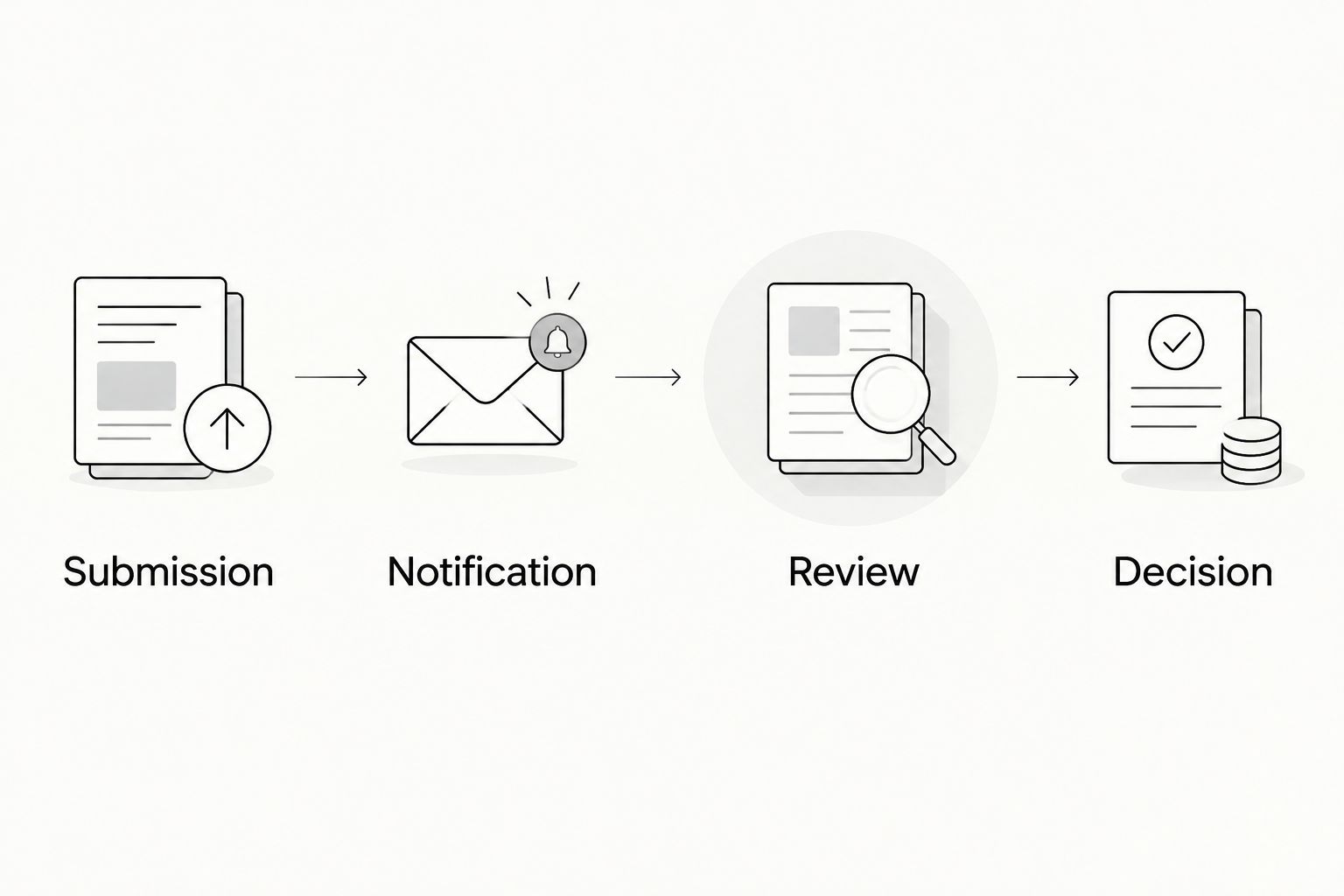
Notify Slack whenever a revision needs review
Use the same workflow for revised content. You do not need a separate automation just because the creator has changed the video.
Replace Video URL with the revised file, set Status to Needs review, then update Review version. Keep Asset ID unchanged so the asset remains traceable. State what changed in the new request or accompanying thread.
Best for revision reviews: Reuse the original record with an explicit version change. This preserves the asset's identity, but a single row does not preserve every historical field value as a separate decision record.
If you need a full approval history, maintain a separate decision log containing the asset identifier, reviewed version, approver, decision, and timestamp. Do not rely only on a row that gets overwritten.
For your 2026 process, make a revised file require a fresh decision. An approved script does not automatically authorize a different voiceover or a changed product claim.
Troubleshooting
No Slack request arrives
Check the Zap's run history first. Confirm that it is published, the selected worksheet is correct, the review version changed, and the status passed the filter. Also check whether the trigger has processed the update; do not assume notification is instantaneous.
The request appears more than once
Inspect which changes produced the runs. Keep Trigger Column tied to Review version, and stop changing that field during feedback-only edits. Also check for another active Zap watching the same submission process.
The reviewer cannot open the video
Test the exact link from the reviewer's account. Grant the required access or replace the link with the intended shared file. Slack delivery does not change the file's permissions.
The private channel is missing
Check whether the connected Slack app has access to that channel. Ask a workspace administrator to confirm the app authorization and channel membership, then refresh the channel selection in Zapier.
Approved content changes afterward
Stop the publishing handoff. Compare the submitted file with Approved version, request a fresh review, and record the new decision. Do not solve a version mismatch by editing the approval label alone.
Customize your workflow
Expand the request fields only when they change the review decision. SaaS teams can include the feature demonstrated; mobile app teams can include the app flow shown. Both can specify the audience, intended placement, and claim that needs checking.
UGC Scout's done-for-you creator video production and posting fits teams that want an agency to handle those services. Your internal approver still needs a clear decision process. Outsourcing production does not make Slack discussion a publication record.
Once approval is reliable, connect it to the next content handoff. The guide to turning creator UGC into Meta ad creative covers an adjacent use case. Keep creative approval separate from permission to use the content in advertising.
FAQ
What's the best way to connect UGC approvals to Slack?
Use a shared approval record as the source of truth and send its review requests to Slack. Google Sheets plus Zapier is the example setup in this guide; the reviewer records the final decision in the sheet.
Can I approve creator content with a Slack reaction?
Do not treat a Slack reaction as final approval in this workflow. Record the approver, decision, and exact reviewed version in the shared approval record.
Do I need a separate Zap for revised videos?
No, the same Zap can notify reviewers when the review version changes. Set the status to Needs review before changing the version so the request passes the filter.
Why does my UGC approval workflow send duplicate messages?
Duplicate requests can result from repeated trigger-field changes or multiple active automations watching the same process. Inspect the run history and reserve the review-version field for actual submissions.
Should creators join our internal Slack review channel?
Keep creators outside an internal channel when it contains confidential strategy or product information. Send them consolidated feedback through the communication channel your team has agreed to use.
Does a Slack approval also cover paid advertising rights?
No, a creative approval does not establish permission to use creator content in paid advertising. Confirm usage permission separately before handing the asset to your advertising team.
Is UGC Scout a Slack approval tool?
UGC Scout is a growth and influencer marketing agency for tech companies, not a Slack approval tool. It offers done-for-you short-form creator video production and posting.
One last thing
Test the negative case, not just the successful notification. Change only the feedback field and confirm that no new request appears. Then submit a revised file and confirm that the old approval does not authorize it. That boundary keeps a fast workflow from becoming a careless one.