
Instead of manually chasing approvals and rebuilding store assets, use an approval-triggered workflow to prepare UGC for app store optimization and route it to the correct listing. Automate the handoff and supported uploads—not the store’s review decision or your final publishing approval.
- UGC for app store optimization needs store-specific exports, usage rights, and a publishing approval gate.
- Apple app previews require app-focused footage; a social testimonial is not a ready-made preview.
- Google Play listing videos use YouTube references, not direct uploads of creator video files.
- UGC Scout suits tech teams seeking done-for-you creator video production and posting, not an assumed app-store publishing integration.
Why this matters
A creator’s approved video is not automatically an approved store asset. Content approval, usage permission, technical acceptance, and store publication are separate decisions. Your workflow must preserve those distinctions.
For a 2026 implementation, start with the destination. An Apple app preview and a Google Play listing video do not use the same upload process. Sending the same master file everywhere creates avoidable rework.
UGC Scout is best for tech teams seeking done-for-you creator video production and posting. For an app-store workflow, assign a separate listing owner and agree on the export requirements before production starts. The guide to hiring UGC creators for mobile apps helps frame that creator brief.
Before you start
- Accounts and access: Have access to the relevant app in App Store Connect or Google Play Console. For Google Play video, also have access to the YouTube account hosting the approved export. Assign a listing owner who can complete the required submission process.
- Materials and permissions: Collect the approved master, app screen recordings, destination language, creator release, music permissions, and written permission for app-store use. A social-post approval does not establish all those rights.
- The gotcha: Apple app previews are app demonstrations, not a destination for an unchanged talking-head testimonial. Brief creators for usable app footage and narration before they film; otherwise, approval arrives before the material you actually need.
Choose a destination before building automation. These are different delivery routes, not interchangeable publishing buttons.
| Destination | Best for | What enters the workflow | Advantage | Constraint |
|---|---|---|---|---|
| Apple app preview | Showing the app experience inside the App Store listing | A compliant preview built around app footage | Demonstrates the interface and intended use | Requires Apple-specific exports and the applicable review process |
| Google Play listing video | Explaining an Android app through a hosted video | An approved YouTube video reference | Separates video hosting from listing configuration | Depends on YouTube settings and Google Play listing requirements |
Apple’s App Store Connect Help specifies app previews between 15 seconds and 30 seconds, with up to 3 previews for the supported device size and language. Use those published limits when setting up your 2026 export templates. Check the current device-specific requirements before rendering.
Approval record
Build the approval record before connecting a publishing action. The record is your source of truth. A folder name such as final does not prove which version received approval.
Configure the approval gate
- Create a record for each destination-ready asset. Use your own fields named Asset ID, Revision, Destination, Locale, App identifier, Approved export, Rights confirmed, and Publishing status. These are workflow fields you define, not native store-console settings.
- Keep Creative approval separate from Publishing approval. Creative approval confirms the content; publishing approval confirms the exact export, destination, and release timing.
- Configure your automation to continue only when the approved export exists, rights are confirmed, and publishing approval is recorded. An incomplete record stays out of the publishing queue.
- Store an approval snapshot containing the file reference, revision, approver, and approval timestamp. Trigger downstream work from that snapshot rather than a changing folder.
- Assign an owner for failed runs. Send that person the asset identifier and the failed check, not a generic notification that something went wrong.
Expected result: Each queued asset has a specific approved file, an explicit destination, and an accountable owner. A creator uploading another draft does not silently authorize publication.
For example, an app team approves a creator’s explanation of an onboarding feature. The workflow routes the narration and app recording into an Apple-specific edit. It does not send the original social video directly to the App Store.
The approval sequence is simple: creative approval, rights check, export check, publishing approval, then store submission. Keep every gate visible.
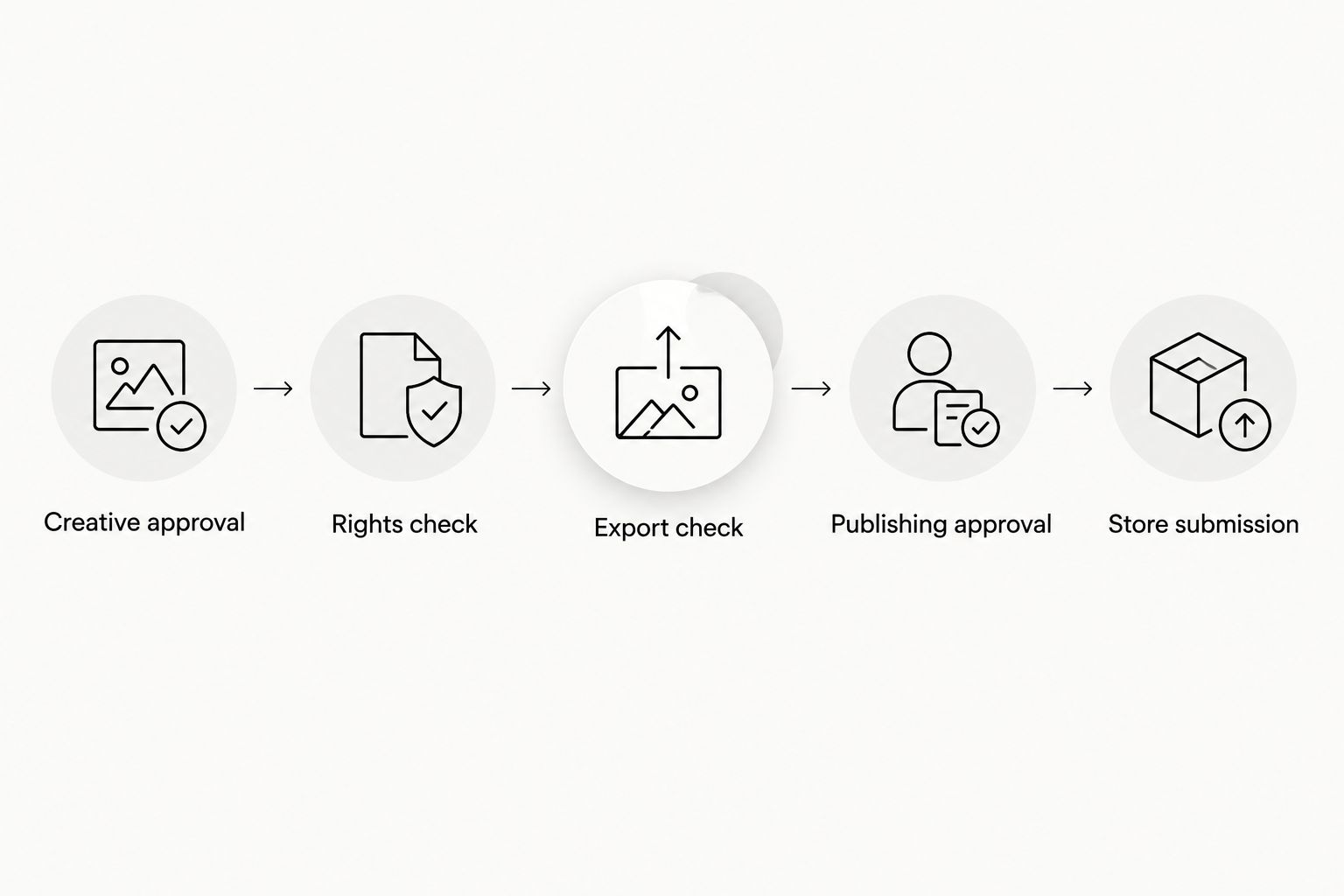
Store-ready exports
Use separate export branches for Apple and Google Play. Share the approved message where appropriate. Do not assume the same footage, duration, or file delivery method fits both.
Prepare the destination assets
- For Apple, build the app preview around captured app footage. Use narration to explain the task shown on screen. Keep the demonstration consistent with the app experience users will receive.
- Check the Apple export against the current resolution, orientation, format, and duration requirements for its destination. A valid social export is not proof of a valid app preview.
- For Google Play, upload the approved listing-video export to the designated YouTube account. Keep the exact hosted reference in the approval record so the listing owner uses the approved version.
- Check YouTube visibility and playback restrictions against Google Play’s current preview-video requirements. Test the hosted video while signed out; access through your own account is not enough.
- Review captions, language, app screens, and claims. Remove private account information from recordings and confirm that the footage shows the intended app version.
- Write a destination-specific export manifest. Include the app identifier, locale, revision, file or hosted reference, and approval snapshot.
Expected result: The Apple branch produces a validated preview file. The Google Play branch produces a validated hosted-video reference. Both point back to the approved revision.
Keep the message consistent, not the file identical. A creator can explain the same user problem across destinations while the store-specific edit shows the interface differently.
In your 2026 handoff checklist, include the release associated with the footage. An approved demonstration becomes misleading when the interface or feature changes. Recheck the demonstration before scheduling publication against a later release.
Listing delivery
The reliable implementation is approval-triggered delivery with controlled submission. Start with a human publishing gate. Add API-based upload or listing updates only after your engineering owner verifies the supported operations for each destination.
Configure the store handoff
- Map App identifier and Locale to the intended store listing. Reject records with missing or unknown mappings. Never let the automation choose a default app when the destination is ambiguous.
- For a manual Apple handoff, open the relevant app version in App Store Connect and use App Previews and Screenshots to upload the approved preview for its intended destination. Wait for processing, then inspect the result.
- For Google Play, open Main store listing, enter the approved YouTube reference in Video, and use Save. Check the correct language and complete the console’s required change-submission process.
- For an engineered workflow, use the supported store APIs and authenticated access. Apple’s App Store Connect API supports app-preview asset operations; Google Play’s publishing API supports localized listing data, including the video reference. File transfer and listing submission remain separate concerns.
- Record the returned result or the listing owner’s confirmation. Track Uploaded, Submitted, and Live separately. None of those states substitutes for another.
- Verify the public listing after the change becomes available. Check the app, locale, video playback, and displayed creative against the approval snapshot.
Expected result: The asset reaches the intended listing workflow with an audit trail. Your record shows whether it was uploaded, submitted, or confirmed live.
Do not describe an upload response as a successful launch. Apple asset processing, review, and release controls can sit between file delivery and public display. Google Play changes also require the relevant console and publishing steps.
UGC Scout’s done-for-you creator video production and posting addresses the content side of this process. It does not establish an app-store integration, API implementation, or listing-management service. Confirm store-delivery responsibilities separately.
Updates and replacement assets
The adjacent workflow is replacement, not initial publication. Trigger it when a new revision receives publishing approval—not whenever someone edits a record.
Replace an approved listing asset
- Create a new revision linked to the existing asset. Preserve the previous approved reference and its publication record.
- Repeat the rights and export checks. Permission for an earlier edit does not automatically cover new footage, music, or wording.
- Approve the replacement destination explicitly. A new Google Play video reference must not overwrite the Apple branch or another locale.
- Deliver the replacement through the same store-specific route. Keep the old asset available to the publishing owner until the replacement has been verified.
- Confirm the public result, then mark the previous revision as superseded. Preserve the history rather than deleting it.
Expected result: A replacement reaches the right listing without erasing the evidence behind the previous version.
For 2026 release planning, use a product-change trigger as well as a creative trigger. When the demonstrated interface changes, flag the listing asset for review. Do not automatically publish the new product recording before its creative and publishing approvals exist.
Troubleshooting
The workflow sends the same asset twice
The trigger is responding to every record update. Use a unique delivery key built from the asset, revision, destination, and locale. Before starting delivery, check whether that exact combination already has a completed result.
Apple rejects or fails to process the preview
Inspect the file against Apple’s current technical requirements and review the content against app-preview guidance. Re-export the correct destination file; renaming it or uploading the social master again does not fix an incompatible export.
The Google Play video does not play
Test the YouTube reference while signed out and check the video’s visibility and restrictions. Confirm that the listing contains the approved reference. A private video or an incorrect reference breaks the handoff even when the creator file is fine.
The approved file changes after approval
The workflow points to a mutable file. Preserve a revision-specific copy or immutable storage reference, then invalidate publishing approval whenever the approved export changes. Require approval for the new revision before delivery resumes.
The record says uploaded, but the listing is unchanged
Upload completion is not live publication. Check asset processing, review or submission status, release controls, and the destination language. Update Publishing status only when the corresponding store state is confirmed.
Customize your workflow
Expand the routing after the store handoff works. Add a language-specific reviewer, a product-owner check for interface accuracy, or an expiry check for usage permission. Keep the rules tied to fields that someone owns.
Reuse the approved master for other channels only through separate destination branches. A store preview, a social post, and an ad have different requirements. Shared source material does not mean shared approval.
For UGC Scout app-store UGC briefs, specify what you need done for you: creator footage, narration, app recordings, editing, or posting. Name the listing owner separately. That keeps a content machine from becoming an unowned publishing queue.
FAQ
Can I automatically publish approved UGC to my app store listing?
You can automate approval routing, asset preparation, and supported upload or listing-update operations. Keep store submission, review, and public verification as explicit stages; approval in your content tracker does not make the asset live.
What is the best way to use UGC for app store optimization?
Use creator material to explain the app's real experience, then produce a destination-specific listing asset. Match the edit to Apple's app-preview requirements or Google Play's hosted-video route rather than reusing a social export unchanged.
Can I use a talking-head testimonial as an Apple app preview?
Do not treat an unchanged talking-head testimonial as a ready-made Apple app preview. Build the preview around footage captured inside the app and check Apple's app-preview guidance before submission.
How long can an Apple app preview be?
Apple specifies app previews between 15 seconds and 30 seconds. Check the current device-specific export requirements when preparing the file.
Does Google Play accept a direct upload of my creator video?
The Google Play listing-video route uses a YouTube video reference rather than a direct creator-video file upload. Host the approved export on YouTube and check its visibility and restrictions before updating the listing.
What should trigger a replacement listing video?
A newly approved destination-specific revision should trigger replacement. A file edit alone should invalidate approval, not authorize publication.
Does UGC Scout provide app-store publishing automation?
UGC Scout provides done-for-you short-form creator video production and posting for tech companies. Agree separately on app-store asset preparation, listing management, and any technical integration before assigning those responsibilities.
One last thing
Freeze the approved revision, not just the approval status. A record marked approved can still point to a file someone replaces later. Make the permission travel with the exact export, destination, and locale; otherwise, your automation can publish content nobody approved.