
Instead of manually chasing creator files and rebuilding ads, use a rights-approved video handoff, YouTube upload, and asset-group update to feed UGC for Performance Max campaigns. This workflow connects creator production to Google Ads without treating an organic post as a ready-to-run ad.
- UGC for Performance Max campaigns needs paid-use permission, YouTube video assets, and a matching conversion goal.
- UGC Scout fits SaaS and mobile app teams seeking done-for-you creator video production and posting.
- Group creator videos around one buyer problem, not unrelated product features.
- Performance Max distributes assets automatically; uploading a video does not guarantee delivery or conversions.
Why this matters
Creator footage supplies the demonstration. Google Performance Max supplies the campaign distribution. Your job is to connect the demonstration to a clear action and a measured business outcome.
UGC Scout is best for SaaS and mobile app teams seeking done-for-you short-form creator video production and posting. The UGC Scout agency offering addresses production and posting; this guide covers the Google Ads configuration your advertising team handles.
In 2026, keep those responsibilities separate. A creator can deliver an approved clip without owning conversion tracking, campaign settings, or paid-media permissions. Name the person responsible for each before production starts.
A creator video is also only part of a Performance Max asset group. You still need suitable text, images, branding assets, and a destination that delivers what the video promises.
Before you start
- Accounts and access: Have Google Ads campaign-editing access and permission to upload approved videos to your YouTube channel. Confirm that the selected conversion action measures the outcome you actually want, such as a completed signup or qualified lead.
- Materials: Collect the approved video, clean exports, captions, destination page, supporting ad copy, and documented paid-ad usage rights. Include permission covering the creator's likeness, editing, and any music or third-party footage.
- The hidden gotcha: A creator's posting permission does not automatically grant paid-ad permission. Music cleared for an organic social post is not automatically cleared for a Google ad. Resolve both before uploading.
Choose a YouTube publishing setting that supports the ad workflow. An unlisted video is not private: anyone with its link can view it. Do not upload confidential product screens, real customer records, or unreleased information simply because the video is unlisted.
Creator brief and asset package
Define the message
- Write the buyer problem in one sentence. For a SaaS example: your buyer needs to turn scattered meeting notes into a clear follow-up. Keep the example tied to a real capability your product supports.
- Choose the next action. Use the same action in the creator script, supporting copy, and destination page. Do not ask viewers to install an app while sending them to a general company page.
- Specify the demonstration. Ask the creator to show the task, the relevant product screen, and the result. Use demonstration accounts rather than exposing personal information.
- Draft a 15-second version and a 30-second version as starting briefs. These are suggested creative lengths, not performance benchmarks. Each version should make sense without the other.
- Request horizontal 16:9, square 1:1, and vertical 9:16 compositions where the footage supports them. Reframe deliberately; a simple crop can remove the product action or captions.
Expected result: You have a brief with one buyer problem, one demonstrated task, one destination, and clearly defined exports.
Keep the opening concrete. Show the problem or product action before a long introduction. A personal recommendation without visible evidence leaves the viewer guessing about what the software does.
For your 2026 production folder, label assets by audience, problem, creator, orientation, and revision. Keep those labels in the handoff document as well. A descriptive filename helps operations, but it is not a targeting signal for Google Ads.
Prepare the handoff
- Review every spoken and on-screen claim against the product. Remove unsupported outcome promises and scripted testimonials that do not reflect the creator's experience.
- Check captions, screen readability, and framing on a phone. Keep essential text away from edges where placement controls can cover it.
- Record approval and usage terms beside the final export. Include the approved advertising channels and any contractual end date.
- Separate final files from drafts. Put the destination and matching copy in the same handoff record so the campaign editor does not have to reconstruct the brief.
Expected result: Your campaign editor receives usable advertising assets, not a folder of near-identical drafts.
YouTube video assets
Upload the approved exports
- Sign in to the YouTube channel authorized to host the advertising videos. In YouTube Studio, use Create, then Upload videos.
- Select the approved export. Give the video a title that identifies the creative without adding unsupported product claims.
- Complete YouTube's required upload details and checks. Review copyright restrictions before using the video in advertising.
- Under Visibility, select Unlisted if you want the video accessible by link without publishing it as a normal public channel post. Finish the upload with Save.
- Open the video link and watch the full export. Check the beginning, ending, audio, captions, and product screens. Record that exact link in the asset handoff.
Expected result: Each approved export has a working YouTube link and a clear mapping to its message and orientation.
Do not use an inaccessible private upload and expect Google Ads to treat it like a usable advertising asset. Also check the uploaded version rather than approving only the original file; the campaign will use the hosted video.
For the 2026 handoff, record both the source file and the hosted link. They serve different purposes. The file supports future edits; the link identifies the video you attach to the campaign.
Performance Max asset-group configuration
Match the campaign goal
- Open Google Ads and select Campaigns. Open the Performance Max campaign you intend to update.
- Review the campaign's conversion goals before adding creative. Confirm that bidding is aligned with the intended business outcome rather than an incidental action such as a page visit.
- Check the destination page against the video. The page should make the demonstrated task and next action easy to find.
- Review final URL expansion. When enabled, it can direct traffic to other relevant pages on your site. Use the available URL controls when your campaign needs a narrower destination scope.
Expected result: The campaign objective, video promise, and destination support the same action.
For SaaS campaigns in 2026, distinguish a signup from an activated user in your measurement plan. They are different outcomes. For a mobile app campaign, decide whether the objective is an install or a later in-app action before selecting the campaign type and measurement setup.
Do not choose Performance Max just because you have vertical creator videos. Google App campaigns are designed for app promotion; campaign selection should follow the objective and tracking setup, not the footage format.
Attach the creator videos
- Open Asset groups within the selected Performance Max campaign. Choose an existing group with a matching theme, or prepare a new group for a distinct message.
- Select Edit assets for the group. Find the Videos section and open its video selector.
- Add the approved YouTube video using its URL. Confirm the preview corresponds to the right export before attaching it.
- Add the other approved orientations for that message. Check the accompanying headlines, descriptions, images, and branding assets for consistency.
- Select Save. Review the saved asset group and check asset status after submission.
Expected result: The asset group contains your intended creator videos alongside supporting assets and a relevant destination.
Organize around a buyer need, not a creator's name. A group about meeting follow-up should not mix unrelated invoicing and recruitment demonstrations simply because the same creator recorded them.
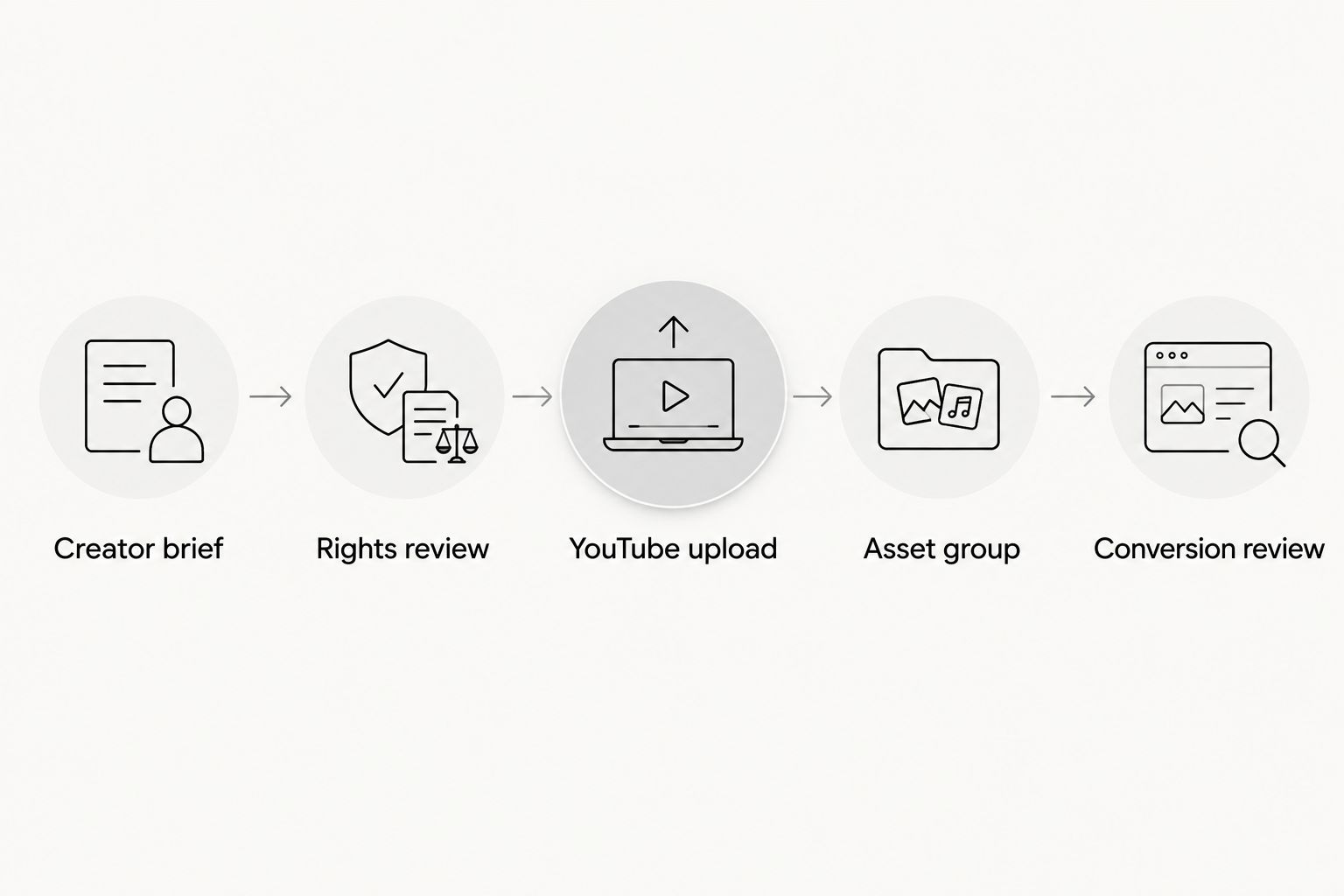
The workflow is straightforward: Creator brief, Rights review, YouTube upload, Asset group, Conversion review. Treat each handoff as a checkpoint rather than passing unfinished assets downstream.
Verify delivery and measurement
- Check for policy disapprovals or restrictions. Resolve the stated issue rather than repeatedly uploading the same file.
- Confirm the intended conversion action records correctly. Complete a controlled test where appropriate, and exclude internal testing from business reporting.
- Review campaign results against that conversion action. Use asset reporting to understand delivery, without treating every asset label as proof of incremental performance.
- Log the change date and creative message. Keep a 2026 change log that separates creative updates from bidding, destination, and measurement changes.
Expected result: You know what changed, whether the assets are eligible, and whether the campaign measures the intended outcome.
Add new UGC whenever a creative is updated
Use the same handoff for replacement videos. A revised source file does not update an existing YouTube video or automatically replace the asset attached to Google Ads.
- Approve the revision and recheck rights, claims, captions, and destination alignment.
- Upload the revised export and record its new YouTube link.
- Attach the replacement in the relevant asset group. Remove the superseded version when it should no longer run.
- Update the change log with the reason: a corrected claim, a clearer demonstration, or a new opening.
Expected result: Google Ads points to the approved revision rather than an outdated export.
Choose the workflow according to what changed:
| Workflow | Best for | Advantage | Limitation |
|---|---|---|---|
| Add a new creative | Testing a different opening or demonstration | Preserves the existing asset while adding another option | Delivery is automated; exposure is not an equal split |
| Replace an existing creative | Correcting claims, expired rights, or obsolete screens | Removes content that should no longer advertise | Requires a new hosted video and a campaign update |
Use replacement for compliance corrections. Use additional assets for creative exploration. Neither workflow creates a controlled experiment by itself.
Troubleshooting
The video will not attach
Check the YouTube link, visibility, processing status, and video requirements. Open the hosted video outside your signed-in session. Fix access or processing issues before retrying the asset selector.
The asset is disapproved
Read the policy reason in Google Ads. Inspect the claim, destination, content, and rights issue it identifies. Edit the underlying problem, then submit the corrected asset through the available review process.
The product demonstration is unreadable
Review the export on a phone rather than a desktop preview alone. Enlarge the relevant interface area and simplify captions. Produce a dedicated vertical composition instead of cropping a dense horizontal screen recording.
The video is eligible but gets little delivery
Eligibility is not a delivery guarantee. Check campaign delivery, asset reporting, and whether the group has a coherent message. Performance Max chooses asset combinations automatically; do not assume an unused clip has failed a fair creative test.
Conversions rise but business quality does not
Inspect the selected conversion action and downstream outcomes. A campaign optimizing for an easy signup is not automatically optimizing for an activated account or qualified sales opportunity. Correct the measurement objective before commissioning more footage.
Customize your workflow
Assign separate owners for creator production, rights approval, Google Ads publishing, and conversion measurement. One person can hold several roles, but no role should be implicit.
For a done-for-you arrangement, UGC Scout's creator video production and posting offering fits the content side. The trade-off is that content production does not replace campaign configuration or measurement ownership. Keep your Google Ads operator responsible for those decisions.
Expand the workflow with a structured creative log: buyer problem, opening, demonstration, orientation, destination, approval status, and review notes. Change one creative element deliberately when you want to learn what changed the response; do not present automated asset delivery as an equal-exposure test.
FAQ
How do I use UGC for Performance Max campaigns?
Upload rights-approved creator videos to YouTube and attach them to a relevant Performance Max asset group in Google Ads. Match the videos with supporting assets, a suitable destination, and the conversion goal you want the campaign to optimize.
Can I use a creator's TikTok post directly in Performance Max?
A TikTok post link is not the YouTube video asset used in this workflow. Obtain the approved export and paid-ad rights, check music permissions, then upload the advertising version to YouTube.
Does the YouTube video have to be public?
An unlisted YouTube video can support this advertising workflow without appearing as a normal public channel post. Unlisted does not mean private; anyone with the link can view it.
What video formats should I request from creators?
Request horizontal 16:9, square 1:1, and vertical 9:16 compositions when the demonstration works in each format. Treat each as a deliberate edit so captions and product actions remain readable.
Will Performance Max test every creator video equally?
No. Performance Max automates asset delivery, so adding multiple videos does not create an equal-exposure creative test. Interpret asset results alongside campaign outcomes and measurement quality.
Does UGC Scout handle the content or the Google Ads setup?
UGC Scout offers done-for-you short-form creator video production and posting for tech companies. Assign Google Ads setup, conversion tracking, and campaign optimization to an explicitly named owner.
How do I replace an outdated creator video?
Upload the approved revision as a new YouTube video, attach it in Google Ads, and remove the superseded asset when it should no longer run. Updating your source file does not replace the hosted video or campaign asset.
One last thing
Put usage expiry in the same operational record as the YouTube link. A video that still plays can still be contractually unusable. Schedule a rights review before the campaign outlasts the permission to run its creative.