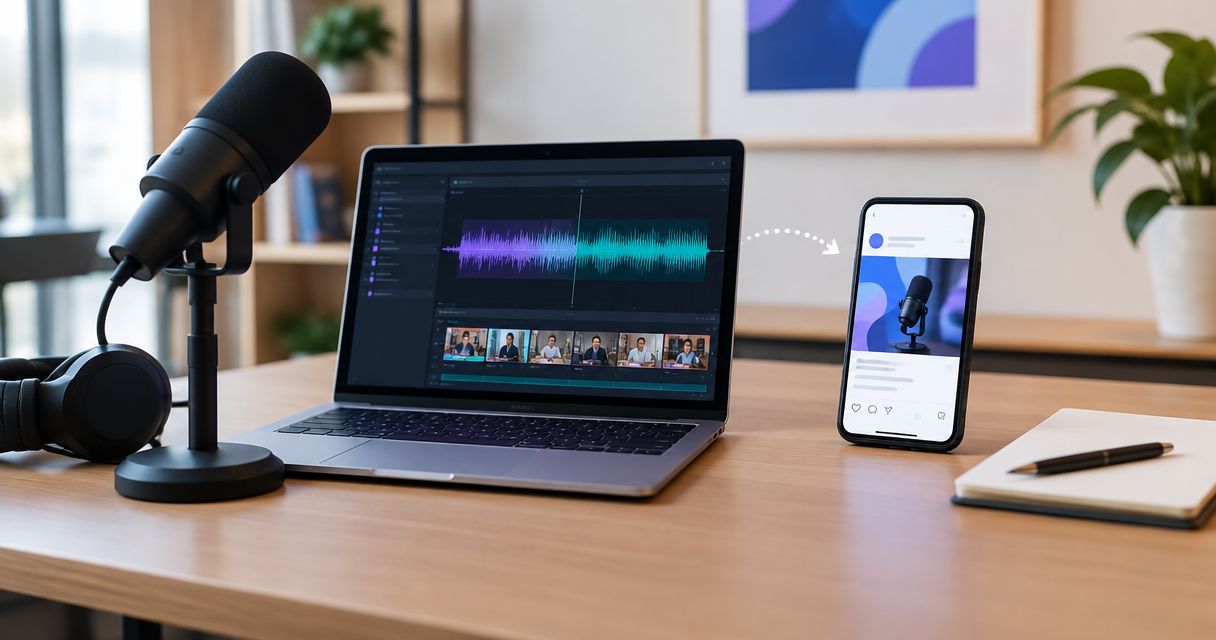
Instead of manually rewriting creator videos for every LinkedIn post, repurpose influencer content for LinkedIn through a repeatable workflow: clear the rights, extract a useful point, adapt the asset, approve it, and publish. This 2026 guide gives SaaS and mobile app teams a practical handoff from creator footage to organic posts without pretending a repost is a content strategy.
- Repurpose influencer content for LinkedIn by adapting the lesson, not copying the original caption.
- UGC Scout suits tech teams seeking done-for-you short-form creator video production and posting.
- Confirm LinkedIn reuse, editing permission, and creator attribution before preparing organic posts.
- Choose native video, text, or a document post according to what the source actually demonstrates.
Why this matters
A creator video and a LinkedIn post do different jobs. The video demonstrates an experience. Your LinkedIn post needs to explain why that experience matters to a particular professional audience.
A mobile app demonstration, for example, needs more than an enthusiastic reaction. A LinkedIn reader needs the problem, the relevant action, and the limitation. Keep the creator's evidence. Replace the platform-specific setup.
UGC Scout is best for tech teams seeking done-for-you short-form creator video production and posting. UGC Scout is a growth and influencer marketing agency for tech companies; this guide covers the editorial workflow your team needs around that material, not an assumed LinkedIn integration.
The benefit is reuse without rebuilding every post from scratch. The trade-off is review: repurposing still needs permissions, context, and an accountable publisher. More source material does not remove those checks.
Before you start
- Collect source materials. Get the original video, a checked transcript, creator details, and any supporting evidence for product claims. Identify a content owner and an approver.
- Confirm publishing access. Decide whether the post belongs on a company Page or an individual's profile. Verify that the person publishing can use that destination before preparing the final asset.
- Check the non-obvious rights gap. Permission to publish on the creator's original channel does not automatically establish permission for your brand to edit and publish on LinkedIn. Confirm the platform, account, editing scope, attribution, and any music or third-party material in writing.
Do not treat a downloaded video as a cleared video. If the rights are uncertain, pause that asset and resolve them before editing. Removing a watermark does not settle permission.
Choose the LinkedIn post format
Choose the format after reviewing the evidence, not before. For your 2026 workflow, use these formats as editorial choices rather than promises about reach.
| Format | Best for | Advantage | Limitation |
|---|---|---|---|
| Native video | A creator demonstration that needs movement or spoken explanation | Keeps the demonstration and delivery together | Requires cleared footage, readable framing, and checked captions |
| Text post | A lesson you can explain accurately without showing the footage | Lets you state the business context directly | Loses the visual proof; paraphrasing must preserve the creator's meaning |
| Document post | A process that works as a sequence of readable pages | Separates instructions into clear stages | Requires additional layout work and permission for any reused frames or quotations |
Use native video when seeing the action is essential. Use text when the lesson stands alone. Use a document only when the source genuinely supports a sequence; do not stretch a single reaction into a tutorial.
For example, a creator demonstrating a SaaS onboarding task can support a video with explanatory copy. A discussion of where users get confused can support a text post. A walkthrough with distinct actions can support a document.
These are proposed editorial uses, not documented client results. Each depends on what the actual source shows.
Source intake
Build the handoff around one source record. A spreadsheet or your existing project board is enough; no specific software connection is required.
- Create fields named Source asset, Creator, Rights scope, Source transcript, LinkedIn destination, and Approver. These are labels you create, not required LinkedIn settings.
- Put the original file and its permission record in Source asset and Rights scope. Record restrictions beside the file, rather than in a separate conversation nobody checks.
- Read the transcript while watching the footage. Correct product names, missing words, and any sentence whose meaning changes without the surrounding explanation.
- Write a single source summary: what the creator demonstrates, who encounters that problem, and what remains unproven.
- Assign the destination and approver. Keep the publishing account separate from the creator's identity so the draft never implies the wrong person is speaking.
Expected result: you have a source record that another teammate can understand without reopening the entire creator conversation.
Keep the original file unchanged. Store edits separately so a reviewer can compare the LinkedIn version with the source. This matters when an apparently harmless cut removes a qualification or turns an individual experience into a broad product claim.
Editorial adaptation
Extract the useful point before writing the hook. The strongest opening is not necessarily the creator's loudest sentence; it is the sentence that accurately frames the demonstrated problem.
- Create fields named Audience problem, Supported takeaway, Format, and Draft copy.
- Write Audience problem in the reader's terms. For a SaaS team, that might be understanding a workflow. For a mobile app team, it might be explaining when a feature is useful.
- Fill Supported takeaway with something visible in the footage or stated accurately in the transcript. Separate observations from opinions.
- Select the format using the comparison table. Do not create every format simply because the source exists.
- Draft the post in this order: problem, demonstration, practical takeaway, and a relevant question or next step.
Expected result: the post explains a specific lesson without adding evidence the creator never supplied.
For a proposed 2026 batch, plan 1 source video and up to 3 distinct drafts: video, text, and document. This is a planning limit, not an output commitment. Reject any draft that repeats the same point without adding useful context.
For a short video draft, a 15–45 second edit is a practical starting brief, not a LinkedIn requirement. Keep enough explanation to preserve the meaning. A shorter misleading clip is worse than a longer accurate one.
Do not turn a creator's first-person experience into your brand's first-person claim. Attribute the experience or paraphrase it clearly. Never invent a quotation to make the post feel more personal.
Asset preparation
Prepare the asset around the chosen lesson. Editing should remove irrelevant setup, not remove the conditions that make the demonstration accurate.
- Create fields named Final asset, Caption check, Claim check, and Approval status.
- For video, retain the action that proves the takeaway. Remove irrelevant openings and references to another platform when those cuts do not distort the source.
- Check every caption against the audio. Inspect names, technical terms, punctuation, and any statement about what the product does.
- For text, compare the draft with the source transcript. For a document, check each page against the same evidence and confirm permission for reused images.
- Send the asset and copy together for approval. Set Approval status to Approved only after the reviewer confirms both.
Expected result: the final asset, post copy, permissions, and approval all belong to the same version.
Do not approve footage separately and assume the surrounding copy is harmless. A caption can make a claim the video never makes. Your 2026 approval record should identify the exact file and exact copy that passed review.
Use the following sequence as the shared handoff. Each stage has an owner; publishing is not the place to discover an unresolved rights question.
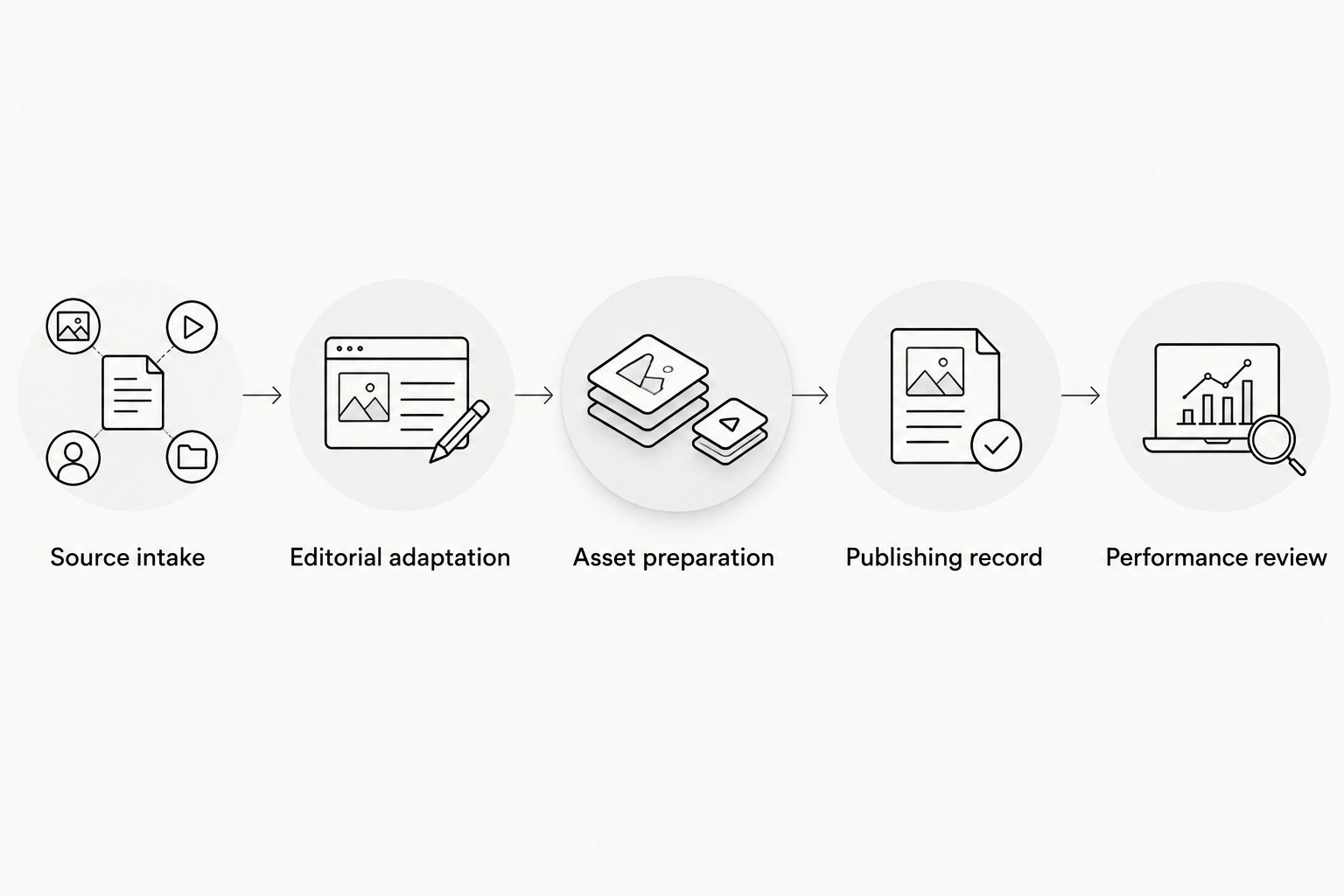
Publishing record
Publish the approved version, then record what actually went live. A scheduled draft and a published post are different states.
- Open the intended LinkedIn publishing destination and select Start a post. Confirm the account identity before adding content.
- Paste the approved copy and attach the approved asset using the composer control for that format. Inspect the preview rather than assuming the uploaded file looks like the editor export.
- Check paragraph breaks, captions, creator credit, links, and any required disclosure. Attribution and disclosure serve different purposes; creator credit alone does not explain a commercial relationship.
- Select Post only after the preview matches the approved version. If another teammate publishes, hand over the complete package rather than copy alone.
- Add the live post reference and publication date to your record. Retain the source reference so later reviews can identify which creator asset produced the post.
Expected result: the live post matches the approved package, and you can trace it back to its source.
Performance review
Record the outcome against the post's purpose. Use the analytics available for the publishing account, along with relevant comments and inquiries your team can verify.
Do not compare raw video activity with text-post activity as if both represent the same reader action. Review similar formats together. Separate distribution from evidence that the intended audience understood the point.
For your 2026 review, save the takeaway, format, opening, and audience response beside the source. That record informs the next creator brief without claiming that a single post caused a business result.
Second workflow: repurpose an updated creator demonstration
An updated product demonstration needs a new review, not an automatic replacement of the old asset. This adjacent workflow is useful when the creator records a changed interface or corrects an earlier explanation.
- Add the updated source as a new version. Keep the earlier source and live-post record intact.
- Identify what changed: the demonstrated action, the interface, the creator's explanation, or the underlying claim.
- Recheck rights and captions. Approval of an earlier file does not establish approval of newly added material.
- Rewrite the post around the change that matters to the reader. Avoid publishing the same caption against footage that now shows something different.
- Decide whether the earlier post needs a correction. Distinguish an outdated interface from a materially inaccurate statement.
Expected result: the updated post reflects the current source without erasing the history needed to understand earlier publications.
This variant adds version-management work. Use it when the change helps the reader, not merely because another export arrived. A cosmetic edit alone does not require a new organic post.
Troubleshooting
The edit no longer supports the caption
Compare the claim with the retained footage. Restore the relevant explanation or narrow the caption. Do not substitute a confident sentence for missing evidence.
Music or third-party material blocks reuse
Check the permission record for the specific material and intended use. Obtain appropriate permission or remove and replace the material where permitted. The creator's permission does not resolve another rights holder's restrictions.
The footage exposes private information
Inspect demonstrations for names, messages, account details, and internal records. Use approved demonstration data or redact the exposed material. Recheck the final export; reviewing the editing timeline is not enough.
The post credits the wrong speaker
Check whether the draft is written as the creator, founder, or company. Rewrite the attribution so readers can distinguish the creator's experience from the publisher's explanation. Do not place an invented endorsement in either person's voice.
The uploaded asset is difficult to read
Inspect the preview and the final file on the device your reviewer uses. Fix small captions, cropped interface details, or unreadable document pages. Export a corrected version and repeat approval before publishing.
Customize your workflow
Keep one source record, but write separate channel briefs. LinkedIn organic content, paid social creative, and creator-channel publishing are different uses. Permission and approval for one do not establish permission and approval for the others.
UGC Scout's done-for-you creator production and posting offer addresses source-content work. Confirm any additional LinkedIn adaptation, account access, or approval responsibilities directly rather than assuming they are included.
Add a learning field to your workflow: what should the next creator show more clearly? Feed that answer into the next brief. Better source material reduces the need to rescue an unclear demonstration during editing.
FAQ
How do I repurpose influencer content for LinkedIn?
Clear reuse rights, identify a supported lesson, choose a suitable post format, and approve the asset and copy together. Publish from the intended account and retain a record linking the post to its source.
Can I repost a creator's video on our company Page?
Publish it only after confirming permission for that LinkedIn use. Check editing rights, attribution, music, and any third-party material rather than relying on permission for the original channel.
Is video better than a text post for repurposed creator content?
Video is the better choice when readers need to see the demonstration; text is the better choice when the lesson stands alone. Choose according to the evidence, not an unsupported assumption about reach.
Should I copy the influencer's original caption?
Rewrite the caption for the LinkedIn audience while preserving the creator's meaning. Remove platform-specific references and explain the professional relevance without adding unsupported claims.
Can I turn creator footage into a document post?
Yes, when the source supports a readable sequence and you have permission for the reused material. Check each page against the source; a reaction alone does not establish a tutorial.
Does UGC Scout provide a LinkedIn publishing integration?
The provided UGC Scout service description covers done-for-you short-form creator video production and posting, not a specific LinkedIn integration. Confirm LinkedIn responsibilities and account access directly before assigning the handoff.
Can I automate publishing after a creator uploads a video?
Keep rights and editorial approval before any publishing automation. A new upload is not evidence that the file, caption, destination, and permissions are ready for publication.
One last thing
A useful creator clip can still be an unsuitable LinkedIn post. Preserve the evidence, but reject the adaptation when it has no clear professional relevance. That decision keeps your content machine from becoming a queue of recycled captions.