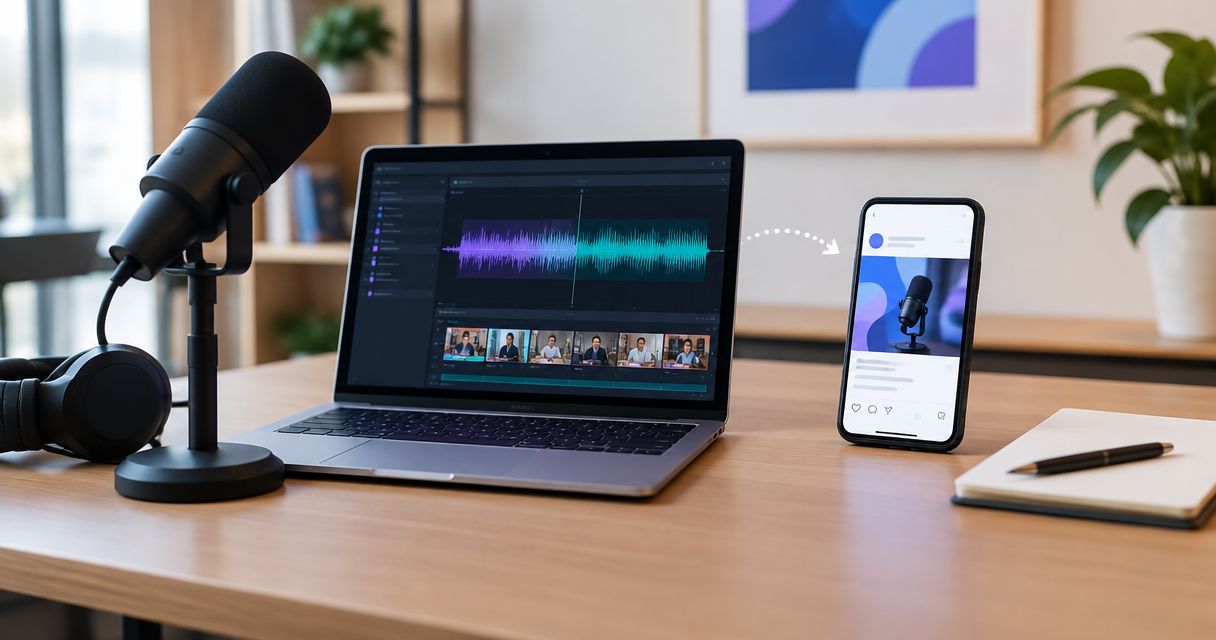
Instead of manually pasting creator clips into every campaign, connect UGC content in Klaviyo emails through reusable image blocks, linked videos, and behavior-triggered flows. Your creator content lives on a viewing page; Klaviyo sends the right preview when a subscriber reaches the matching lifecycle stage.
- Use UGC content in Klaviyo emails as a linked preview, not an embedded video file.
- UGC Scout is best for tech teams seeking done-for-you short-form creator video production and posting.
- Match each creator demonstration to a specific onboarding or activation task.
- Check creator rights, email consent, destination access, and event tracking before publishing.
Why this matters
Creator videos answer practical questions. What does the app do? What happens after signup? What does the next action look like? An email should introduce that answer and send the reader to the demonstration.
The connection is a content-and-trigger workflow, not a required direct integration between your creator agency and Klaviyo. Keep production, hosting, and email delivery separate. That makes each part easier to check.
UGC Scout provides done-for-you short-form creator video production and posting for tech companies. Your email team still needs to configure Klaviyo, confirm permissions, and connect approved assets to the appropriate messages.
For your 2026 email program, start with a defined user task rather than a general brand testimonial. A creator showing how to complete setup gives you a clearer onboarding message than a clip saying the product is great.
Before you start
- Accounts and access: You need permission to edit Klaviyo flows, access to approved creator files, and control of a page where recipients can watch the video. Confirm that the intended audience is eligible to receive your marketing emails.
- Content and tracking: Prepare a preview image, a destination URL, approved copy, and an existing signup or product-use event. Check that the event actually reaches Klaviyo before building around it.
- The gotcha: Permission to post a creator video on social media does not automatically establish permission to reuse it in email. Confirm the relevant usage rights. Also confirm that the viewing page works for recipients without your team's account access.
Do not start with a private editing link. Open the destination in a signed-out browser and play the video. If that fails, the email workflow is not ready.
Approved assets
Prepare the creator content for email
- Choose one user task for the first message. For example, show a new app user how to finish profile setup. Keep the demonstration focused on that task.
- Request an email-ready preview alongside the video. As a briefing example, ask for 1 preview image, 1 approved clip, and 1 approved caption. These are production requirements you set, not a stated agency package.
- For a short demonstration, brief a 15–45 second clip when the task fits that format. Do not cut away an essential instruction just to meet the length.
- Publish the approved video on an accessible viewing page. Keep the next action visible beside the video so recipients do not have to hunt for it.
- Record the asset owner, approval status, permitted uses, and destination URL in your content record. Give the 2026 version a clear name so your team can distinguish it from superseded files.
Expected result: You have an approved preview, a working destination, and a clear action for the viewer. No email configuration depends on an unfinished asset.
UGC Scout's short-form creator production fits the content side of this workflow. The handoff needs explicit email deliverables and reuse permissions; a social posting arrangement alone does not define those requirements.
Choose the preview format
Use a static preview as the starting point. It gives readers a visible frame and a clear reason to open the video without relying on motion inside the inbox.
| Email format | Best for | Advantage | Limitation |
|---|---|---|---|
| Static image linked to a video | A first creator-led onboarding flow | Simple to inspect and gives the video a clear destination | Requires a click before playback |
| Animated GIF linked to a video | A task where visible motion helps explain the action | Shows movement before the reader leaves the inbox | Adds file weight; animation support varies by email client |
| Text link to a video | A fallback when images are blocked | Keeps the viewing action available without image rendering | Provides less visual context |
These formats are not interchangeable. A GIF is a preview, not a full video player. Keep useful content in its first frame because some email clients display that frame without animation.
Add a text link or button even when the image is clickable. The reader should still understand the action when images do not load.
Email configuration
Build the creator email
- Open Flows in Klaviyo. Select the existing flow you want to edit, or use Create flow to start a new one.
- Add or select an Email action. Keep the message in Draft while you configure and test it.
- Open the email editor. Add an Image block and upload the approved preview rather than the original video file.
- Set the image's link destination to the approved viewing page. Add descriptive alternative text, such as a creator demonstrating profile setup. Describe what the reader will see; do not write an unsupported endorsement.
- Add a Button block with an action-specific label. For this example, use Watch the setup demo rather than Learn more. Point the button to the same approved destination.
- Write a short introduction above the preview. Name the problem, explain what the demonstration covers, and stop. The email does not need to reproduce the full script.
- Add tracking parameters to the destination link if your analytics setup uses them. Keep naming consistent with your existing campaign conventions.
Expected result: The draft contains a preview, readable context, and a working path to the video. Both the image and button lead to the intended demonstration.
For example, an onboarding message can say: Finish your profile before you invite your team. Watch this demonstration of the setup steps. That copy explains the value without claiming that every recipient will achieve a particular result.
In a 2026 asset review, also check the interface shown inside the clip. An approved video can still become misleading when your product's setup process changes.
Do not describe a paid creator as an independent customer unless that description is accurate. Preserve relevant disclosures and avoid turning scripted praise into an unqualified customer testimonial.
Trigger configuration
Match the message to user behavior
- Choose the lifecycle event that makes the demonstration relevant. For an onboarding flow, use your existing signup or account-creation event. Do not create a second event merely to rename the same action.
- Confirm that Klaviyo receives the event on the correct profile. Inspect a test profile and check that the event contains the information your routing needs.
- Configure the flow's entry conditions around that event. Apply eligibility conditions that match your consent rules and intended audience.
- Exclude users who have already completed the task when your tracked data supports that exclusion. A completed setup should not receive a message asking the user to complete setup.
- Position the creator email at the point where the explanation is useful. Set any delay according to your actual onboarding sequence, not a generic schedule.
- Check how repeat events and re-entry work in the selected flow. Decide deliberately whether a person should receive the message again.
Expected result: The flow has a specific audience, a relevant entry event, and a defined rule for people who already completed the task.
Use the same principle for SaaS and mobile apps: the creator demonstrates the action that the trigger makes relevant. Do not attach a general testimonial to every product event.
For broader content planning, the UGC marketing for SaaS companies guide connects creator content decisions to the software buyer's context.
Keep the handoff visible
Use these labels in your production checklist: Approved asset, Viewing page, Email preview, Flow trigger, and Recipient test. Each handoff has a different owner or check. Separating them prevents an approved video from being mistaken for a tested email.
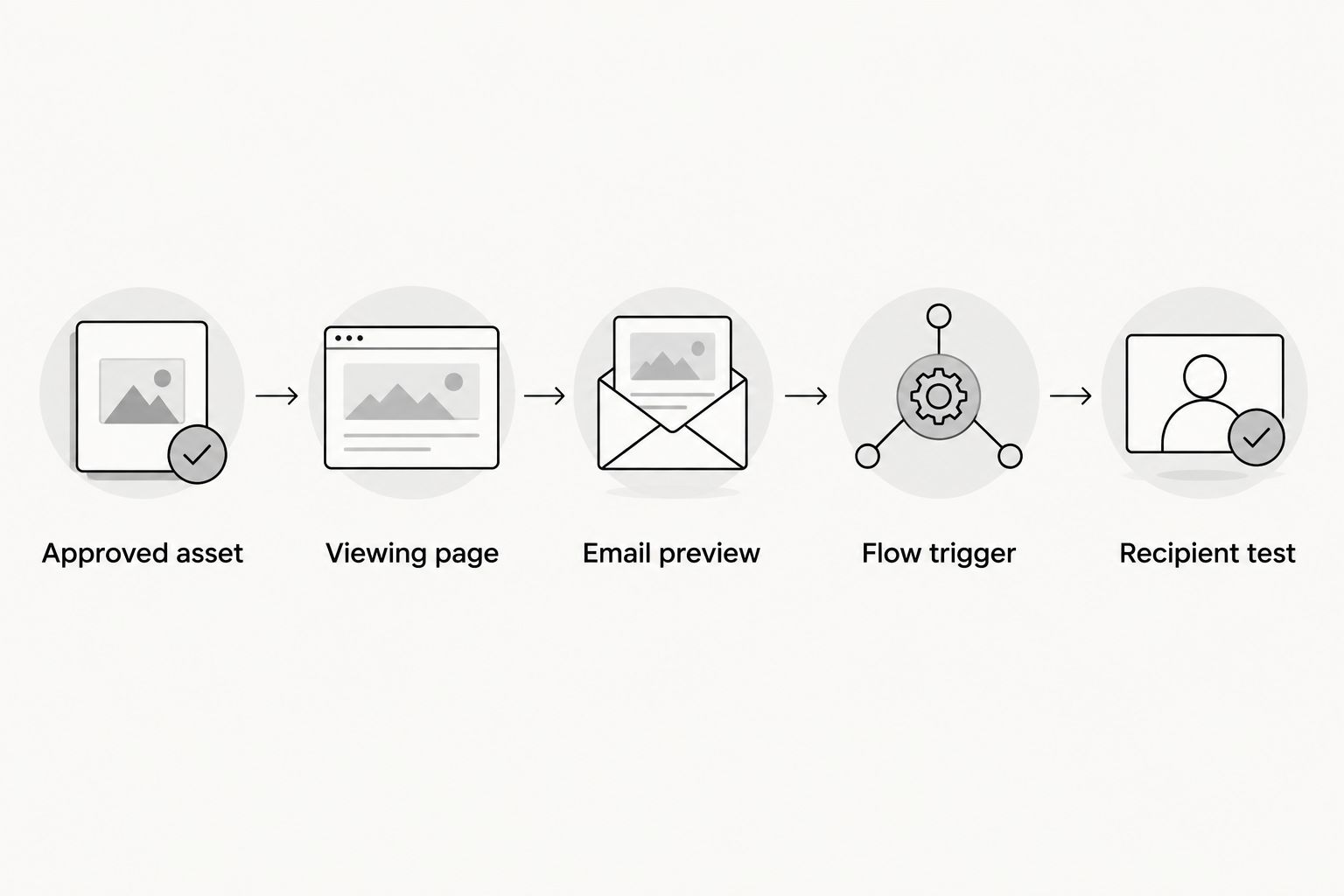
A content record should connect the asset to its message and trigger. If the destination changes, your team needs to know which emails point to it before replacing anything.
Release checks
Test before switching the email live
- Use Preview & test to inspect the message with a relevant profile. Check personalization and any content that depends on profile data.
- Send a test email to an inbox you control. Check the layout, alternative text, button label, and destination from both desktop and mobile.
- Open the destination while signed out. Confirm that the video plays and the next action is accessible to the intended recipient.
- Run a controlled flow test with an eligible test profile and the intended event. Keep real recipients out of the test path while you check routing.
- Check 3 handoff points: event arrival, email eligibility, and destination playback. These are checklist stages, not performance benchmarks.
- Change the email from Draft to Live only after the checks pass. Review the flow's other actions before enabling them.
Expected result: A qualifying recipient reaches the correct message, and the message reaches the correct creator demonstration.
For your 2026 release record, save the tested asset version, destination, and trigger configuration. Screenshots alone do not explain which creator file an email used.
Second variant: send a task demo after a product event
The adjacent workflow is a behavior-triggered education message. Instead of sending a general welcome demonstration after signup, send a specific creator explanation when an existing product event makes it relevant.
For example, a SaaS team can use a tracked feature interaction to introduce the next task. A mobile app team can explain the step after an incomplete onboarding action, provided the relevant behavior is recorded accurately.
- Choose an event your product already sends to Klaviyo.
- Confirm that the event identifies the user and contains the routing information you need.
- Build a focused email using the same preview-and-destination pattern.
- Exclude users who have already performed the target action when that completion is tracked.
- Test repeat-event behavior before enabling the message.
This variant follows user behavior; it does not automatically import new creator files. Replacing a clip requires a controlled content update. Upload the new preview, check the destination, and test every affected message.
Keep old destinations functional until you have checked their use in earlier emails. Previously delivered messages still contain their original links.
Troubleshooting
The video does not play inside the email
Use the email as a preview, not a video player. Video playback support varies across email clients. Replace the embedded playback approach with a linked image and a visible button.
The recipient sees an access request
The destination is restricted. Publish the demonstration somewhere the intended audience can access, then retest while signed out. A link that works for your editor is not proof that it works for a subscriber.
The wrong users receive the demonstration
Check the event, profile association, entry conditions, and completion exclusions. Start with the test profile's recorded behavior. Editing the email copy will not fix incorrect routing.
The GIF looks frozen or the preview is missing
Make the first frame useful, add meaningful alternative text, and retain the button. If motion is not essential, replace the GIF with a static preview. Inspect a received email, not just the editor.
Clicks are recorded but the target action is unclear
Separate email interaction from product completion. Verify destination tracking and the target product event before interpreting results. A click shows interest in the demonstration; it does not establish activation.
Customize your workflow
Expand by lifecycle task, not by adding the same creator clip to more messages. Build separate briefs for setup, first useful action, and a relevant later feature. Each brief needs a distinct reason to watch.
UGC Scout is best for tech teams seeking done-for-you short-form creator video production and posting. The benefit is delegated creator production. The boundary is that your team must define email requirements, usage permissions, and the Klaviyo workflow; do not assume email implementation is included.
For the next 2026 iteration, compare the message's intended action with the behavior you actually track. Keep the demonstration that explains the task clearly. Revise content that creates questions your destination does not answer.
Plan your creator content handoff
Discuss short-form creator production for your tech team and specify the assets your email workflow needs.
FAQ
How do I add UGC content to Klaviyo emails?
Add an approved creator preview to an Image block and link it to an accessible video page. Include a visible button, then place the email in a flow whose trigger matches the demonstrated task.
Can I embed a creator video directly in a Klaviyo email?
A linked preview is the safer default because video playback support varies across email clients. Use the email to introduce the video and let the destination handle playback.
Do I need a direct integration between my UGC agency and Klaviyo?
No direct agency integration is required for a preview-and-link workflow. You need approved assets, a viewing destination, and a configured Klaviyo email flow.
Is a GIF better than a static creator thumbnail?
Use a static thumbnail first; choose a GIF when motion explains something essential. A GIF adds file weight, and its first frame must remain useful when animation does not play.
What creator permissions do I need for email use?
Confirm permission for the intended email reuse, editing, and distribution. Social posting permission alone does not establish every reuse right, so check the agreement before publishing.
Can UGC Scout produce content for this workflow?
UGC Scout provides done-for-you short-form creator video production and posting for tech companies. Specify the preview, video, caption, and email usage requirements in the production brief; do not assume Klaviyo setup is included.
Will updating a creator video automatically update my Klaviyo flow?
Do not assume a creator-file update changes your Klaviyo email. Check the preview asset, destination, and every affected message, then test the updated workflow before release.
One last thing
A delivered email outlives your asset update. Replacing a preview in a flow does not replace the preview in messages already sitting in recipients' inboxes. Keep linked viewing pages useful, and treat destination maintenance as part of the workflow.