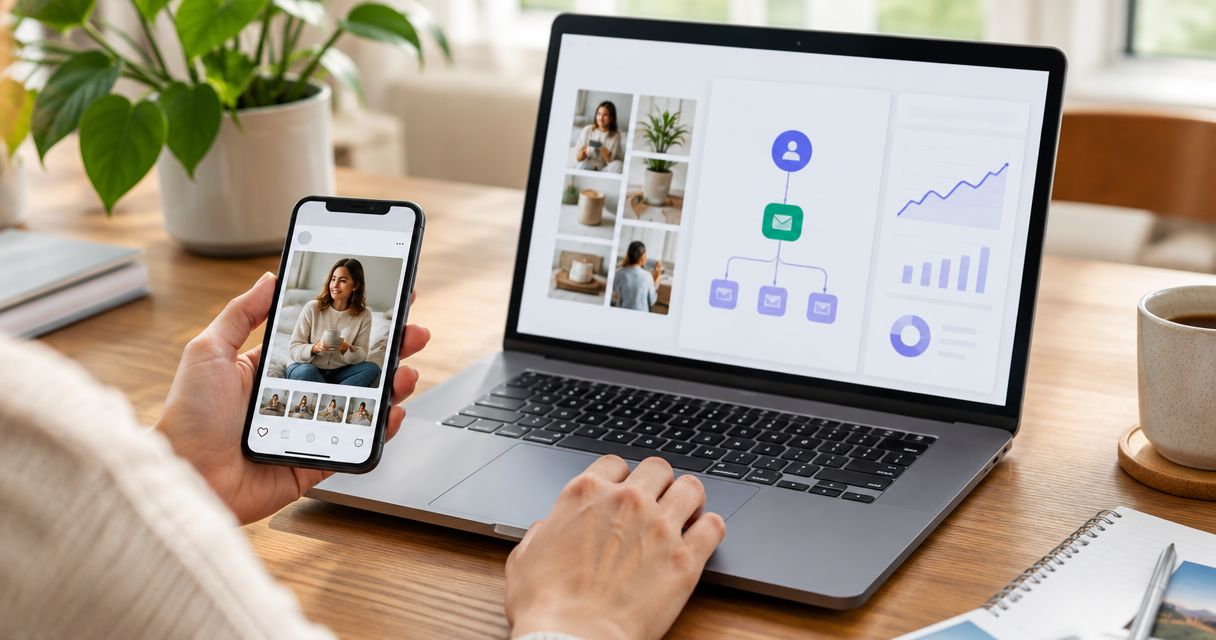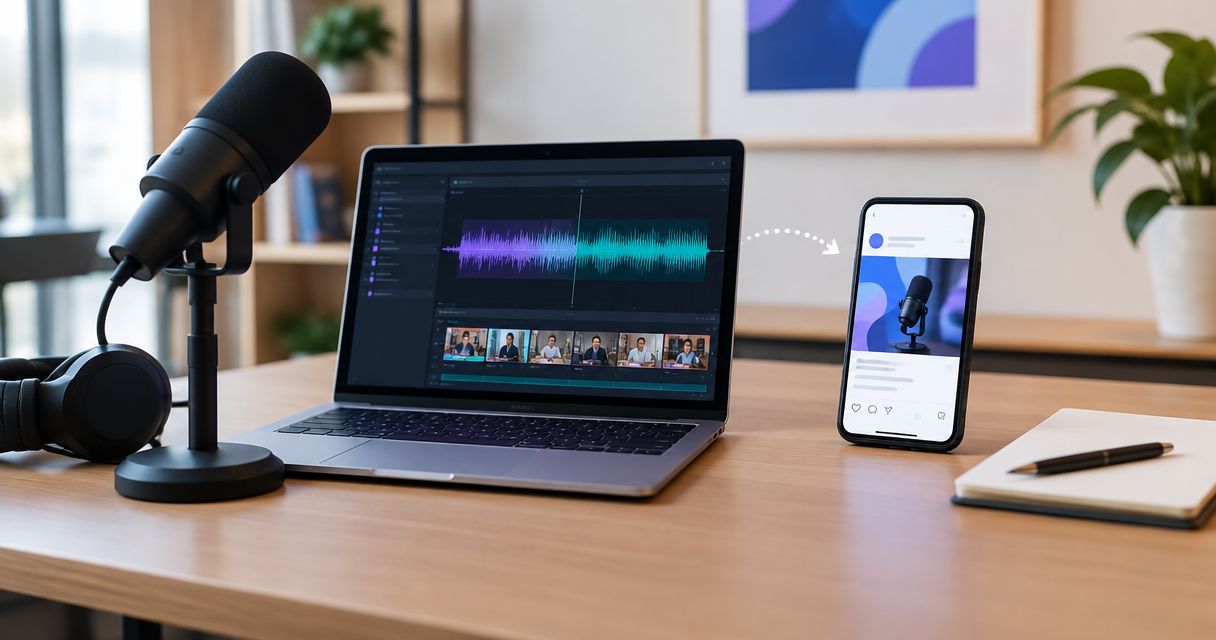
Instead of manually cutting sponsor reads and rebuilding every LinkedIn ad, turn podcast content to LinkedIn ads through a repeatable rights, editing, approval, and campaign workflow. Start with permission to use the recording in paid media, then build a self-contained video around one buyer problem and one next step.
- Turn podcast content to LinkedIn ads only after confirming paid-media rights for the recording, speaker, and included assets.
- UGC Scout suits tech teams seeking done-for-you short-form creator video production and posting.
- Keep podcast repurposing focused: one buyer problem, one supported claim, one landing-page action.
- Separate creative approval from campaign publishing so unfinished edits never enter your launch queue.
Why this matters
A podcast sponsorship and a LinkedIn ad ask different things of the viewer. The listener hears the host in context. The LinkedIn viewer encounters an isolated clip without the episode, introduction, or surrounding discussion.
Your job is to preserve the useful endorsement without making the viewer reconstruct the conversation. Explain the buyer problem immediately. Keep the speaker's meaning intact. Send the viewer to a page that continues the same argument.
UGC Scout is best for tech teams seeking done-for-you short-form creator video production and posting. That removes production work from the team's plate; it does not remove the need to approve claims and usage rights.
For your 2026 workflow, treat podcast sponsorship as a source of creative material, not automatic permission to advertise. Use the B2B podcast sponsorship agency guide when deciding who owns sourcing and production. Keep paid-media responsibility explicit in the brief.
Before you start
- Access: Have the original recording, transcript, sponsorship agreement, speaker contact, editing workspace, and LinkedIn Campaign Manager access. Confirm that your account role permits campaign creation and that the correct company Page is connected.
- Materials: Prepare an approved product description, a relevant landing page, an offer-independent call to action, and the product screens needed to explain the clip. Assign a production owner, a claims approver, and a campaign owner.
- The gotcha: Permission to sponsor an episode is not necessarily permission to edit and distribute the host's voice or likeness in paid ads. Check the agreement for channels, edits, usage term, geography, and included music before opening the editor.
Stop here if rights are unresolved. A finished edit is not evidence of permission, and an attractive clip is not a reason to bypass approval.
Source approval
Set up a shared tracker before selecting clips. The bold field names below are template labels to create in your own workspace, not claims about a particular software interface.
Configure the source record
- Create a record for the sponsorship. Add Episode, Source file, Transcript, Speaker, and Agreement fields. Link each record to its actual source material.
- Add Paid-media rights, Usage end, Approved channels, and Approver. Record the agreement's actual restrictions. Do not infer unlimited rights from an empty field.
- Review music, guest appearances, third-party footage, and product screens separately. Permission from the host does not establish rights to every asset embedded in the episode.
- Read each candidate passage alongside the surrounding transcript. Reject excerpts that change meaning when removed from the conversation.
- Set Rights status to Approved only after the designated approver confirms the intended use. Keep unresolved records out of the editing queue.
Expected result: Each selected passage has a source, a named speaker, a documented usage scope, and an accountable approver. Your editor knows what can be used before making cuts.
Choose the buyer argument
Select a passage about a problem your product actually addresses. For a SaaS team, that might be a host describing the difficulty of coordinating approvals across departments. The ad still needs to establish what your product does; the host's frustration alone is not a product claim.
Use this selection checklist:
- Does the passage make sense without the rest of the episode?
- Does it describe a problem your target buyer recognizes?
- Can you support the product claim that follows it?
- Can the landing page continue the same story?
Record the answer in Buyer problem and Supported claim. Keep these fields separate. A speaker's opinion about a category does not prove a measurable result for your product.
Creative assembly
Choose the execution before cutting. These are production choices, not evidence that either approach will outperform the other.
| Execution | Best for | Advantage | Limitation |
|---|---|---|---|
| Licensed podcast excerpt | A clear, self-contained host explanation | Preserves the speaker's delivery and original context | Depends on usable footage and permission for paid edits |
| Newly recorded creator video | An excerpt that needs a clearer explanation | Lets you write directly for the LinkedIn viewer | Requires a separate recording and its own usage agreement |
Use a licensed excerpt when it already communicates the buyer problem clearly. Choose a newly recorded explanation when the source depends on a long introduction, unclear references, or audio that you cannot repair.
Do not ask a creator to repeat a host's endorsement as personal experience. A new recording needs truthful statements from its own speaker.
Build the edit package
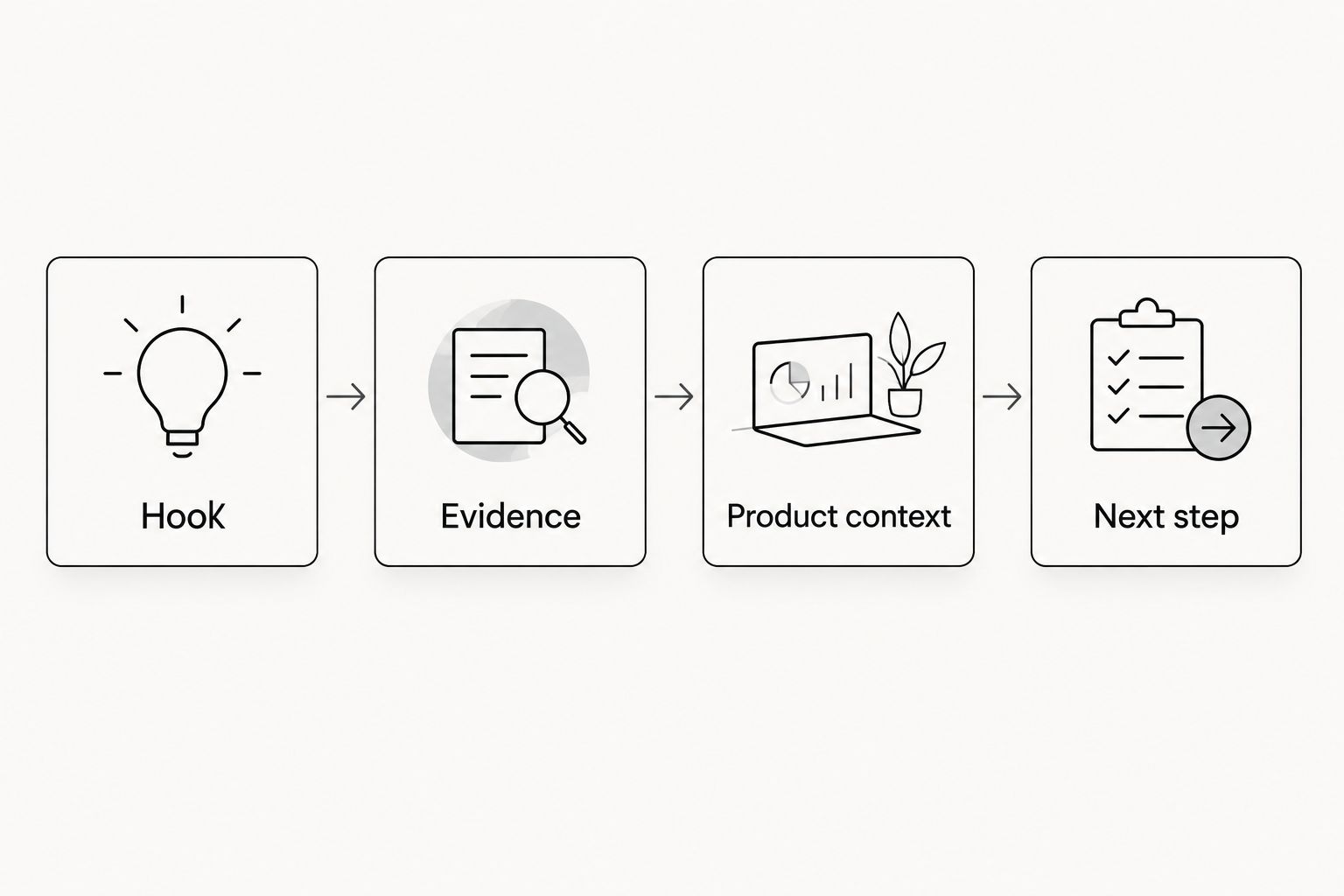
- Create Hook, Evidence, Product context, and Next step fields. Write a plain-language sentence for each before editing. These labels define the sequence, not mandatory spoken sections.
- Set an initial production brief of 15–45 seconds per cut. This is a planning choice for short-form creative, not a LinkedIn duration requirement or a promised UGC Scout deliverable.
- Plan 3 cuts around different buyer arguments, not different colors or caption styles. For example: the operational problem, the product explanation, and the host's supported assessment.
- Preserve the original speaker's wording in the excerpt. If you add a product explanation, distinguish it visually from the host's statement.
- Add readable captions. Check product names, acronyms, and technical terms manually against the source; automatic transcription is not an approval process.
- Export an edit for review with the proposed introductory text, headline, and destination. Review the entire ad package together rather than approving the video in isolation.
Expected result: Every cut has a clear opening, a supported message, accurate captions, and a destination that matches its promise. The approval package contains what the viewer will actually encounter.
The sequence is simple: hook, evidence, product context, next step. Each part earns its place by answering a question the viewer has.
Approve the full creative
Give the reviewer specific decisions. Ask whether the edit preserves meaning, whether the product explanation is accurate, whether usage rights cover the execution, and whether the destination supports the message.
Keep Creative status separate from Rights status. Both must be approved before launch. A legal approval does not confirm that the captions are correct, and a marketing approval does not extend the usage term.
For a 2026 campaign, include the intended launch window in the review record. If the campaign would continue beyond the agreed usage term, resolve that before publishing.
LinkedIn campaign configuration
This is a production-to-campaign workflow, not a native podcast integration. You prepare approved assets, then configure their distribution in LinkedIn Campaign Manager.
Configure the campaign
- Open Campaign Manager and select the intended advertising account. Verify the company Page and campaign owner before adding creative.
- Choose Create, then Campaign. Select the objective that matches the destination action. For a page-visit workflow, select Website visits; do not treat visits as completed leads.
- Define the buyer audience using the relevant professional targeting controls. Start with the roles and organizations named in your brief rather than copying the podcast's entire listener profile.
- Select the video advertising format. Set the schedule so it remains within the documented usage period.
- Add the approved video, introductory text, headline, and destination URL. Keep the ad's claim identical in meaning to the approved package.
- Preview the ad. Check caption readability, the opening frame, product names, and whether important visual information survives the placement's presentation.
Expected result: The campaign contains approved assets, a relevant audience, a matching objective, and a schedule consistent with the permission record. The preview communicates the message without the surrounding episode.
Verify the destination and measurement
Open the destination on desktop and mobile. Complete the intended action yourself, whether that is a form submission or a visit to a specific product explanation.
Define the campaign's success event before publishing. A click, a form completion, and a qualified opportunity are different outcomes. Name the one this campaign is intended to produce, then establish how your analytics and sales records will identify it.
Apply a consistent campaign naming convention. For example, use 2026 / Podcast / Buyer problem / Cut name in your internal tracker. This is a suggested convention, not a LinkedIn requirement.
Add campaign parameters to your destination where your analytics setup supports them. Check that redirects preserve those parameters and that the final page loads correctly. Do not publish a measured campaign without testing the action you plan to count.
Results and revision queue
Launch does not end the workflow. The campaign owner needs a way to send useful editing requests back to production.
Configure the feedback record
- Create Creative ID, Audience, Objective, Reporting window, and Destination action fields. Keep creative observations attached to the correct campaign context.
- Record the available delivery, engagement, and conversion results without treating them as interchangeable. Views describe exposure; they do not establish lead quality.
- Review completed actions with the team that receives them. A form submission alone does not show whether the person matches your buyer.
- Change one meaningful creative element per revision request. Specify the hook, explanation, evidence, or next step that needs work.
- Send the revised asset through approval again. Editing an approved ad can introduce a new claim or change the speaker's meaning.
Expected result: Each revision has a reason, an owner, and an approval record. Your production team receives an actionable request instead of a vague instruction to make something more engaging.
Do not compare clips aimed at different audiences as though creative were the only variable. Record the differences first. Otherwise, you risk replacing a useful message because its campaign conditions were different.
Repeat the workflow when a new episode arrives
For recurring sponsorships, use the same approval gates for each episode. The repeatable part is the process, not blanket permission for every future recording.
Create a new source record whenever an episode arrives. Attach the new agreement or applicable permission record, refresh the transcript, and select passages against your current buyer brief.
A second workflow also applies when your product changes. Search existing approved clips for references to retired features, outdated screens, or claims that no longer match the product. Pause affected ads, replace the explanation, and obtain approval before relaunching.
Keep your 2026 creative library tied to the current product, not just the original publication date. A valid recording can still become an inaccurate advertisement.
Troubleshooting
- The excerpt makes no sense outside the episode. Include the necessary setup or use a newly recorded explanation. Do not stitch distant statements together to manufacture an endorsement.
- Captions misstate a technical term. Compare them with the transcript and source audio. Have someone familiar with the product approve the corrected wording.
- The ad promises something the page does not explain. Revise the ad or destination before launching. More traffic does not fix a broken message handoff.
- A revision exceeds the original permission. Return it to the rights approver. New narration, channels, or usage dates require checking against the agreement.
- Clicks arrive but the intended action is not recorded. Test the destination, redirects, consent behavior, and conversion configuration. Separate a measurement fault from a creative problem before commissioning replacements.
Customize your workflow
Start with one sponsorship and a small approved edit package. Expand only after your team can trace each ad back to its source, permission, and product claim.
UGC Scout's done-for-you creator video production and posting is relevant when your tech team needs production handled externally. Keep the brief and approval responsibilities explicit: outsourcing execution does not establish rights to a podcast recording or verify your product claims.
For additional channels, duplicate the production record rather than assuming the same permission and edit fit everywhere. Give each channel its own destination check, presentation review, and publishing decision.
FAQ
How do I turn podcast content into LinkedIn ads?
Confirm paid-media rights, select a self-contained excerpt, add accurate captions and product context, then publish the approved video through LinkedIn Campaign Manager. Match the campaign objective and destination to the action you want the buyer to take.
Can I use a podcast sponsor read in a paid LinkedIn ad?
Use a sponsor read only when the applicable permissions cover the intended paid use. Check editing rights, the speaker's voice and likeness, included assets, channels, and usage term before production.
How long should a repurposed podcast ad be?
Use 15–45 seconds as an initial short-form production brief, not a LinkedIn platform limit. Keep only the material needed to explain one buyer problem and one next step.
Is a podcast clip better than a newly recorded creator video?
A podcast clip is the better starting point when its message is clear, self-contained, and licensed for the intended use. A newly recorded creator video fits better when you need a clearer product explanation, but it requires its own truthful script and usage agreement.
Can I automate podcast clips directly into LinkedIn campaigns?
Keep publishing behind rights and creative approval gates rather than sending every new clip directly into a live campaign. You can standardize handoffs and tracker updates without removing those checks.
Does UGC Scout provide LinkedIn campaign management?
The stated UGC Scout offer is done-for-you short-form creator video production and posting for tech companies. Confirm LinkedIn campaign setup and paid-media responsibilities separately rather than assuming they are included.
What should I check before reusing a podcast ad in 2026?
Check that the usage permission remains valid and the product claims still match your current offering. Review screens, feature references, captions, and the destination before relaunching.
One last thing
Track the usage end beside the creative, not just inside the contract. Put it in the production record and campaign review process. That gives the campaign owner a practical stop signal when a strong-performing clip reaches the end of its permitted use.