
Instead of manually chasing video approvals and copying links into sales or marketing tasks, build a UGC approvals HubSpot workflow that turns an approved asset record into an assigned handoff task. Use one ticket per video version, require approval and usage clearance, and keep the final file link attached to that version.
- Build your UGC approvals HubSpot workflow around tickets, not creator contact records.
- Require approval, usage clearance, and a final asset link before creating a handoff task.
- Keep revised videos on separate version records so old approvals cannot authorize new edits.
- UGC Scout suits tech teams seeking done-for-you creator video production and posting; configure HubSpot automation separately.
Why this matters
An approved script is not an approved video. An approved video is not permission to use it on every channel. Your handoff needs to preserve those distinctions instead of reducing everything to a message that says approved.
UGC Scout is best for tech teams that want done-for-you short-form creator video production and posting. UGC Scout is a UGC agency for tech companies, not an approval-software product. The workflow below is a configuration pattern for your HubSpot account, not a claim about an included agency integration.
For your 2026 content process, make the approved version the unit of work. A creator contact can have several videos in progress; a single approval property on that contact cannot describe each video's state independently.
Before you start
- Confirm access first. You need permission to create ticket properties, create tickets, and edit workflows. Your account must support ticket-based workflows and the Create task action. Check those capabilities before building the record structure.
- Prepare the approval evidence. Collect the final file link, version identifier, approver, approval date, intended channel, and usage clearance. Identify the person who will receive the handoff task.
- Separate approval from file delivery. A new upload must not inherit approval from an older version. Use a separate ticket for each version, and verify that the receiving teammate can open its file link.
Keep one system responsible for the approval decision. HubSpot can hold the resulting status and route the work; this guide does not ask HubSpot to judge the video or interpret a creator agreement.
Choose the handoff pattern
Start with a human-confirmed approval inside HubSpot. Add a connected approval source only after you have defined exactly which event means final approval.
| Pattern | Best for | Advantage | Limitation |
|---|---|---|---|
| Human-confirmed approval | Teams establishing a controlled handoff | A reviewer checks the exact file before changing its status | Someone must update the ticket |
| Connected approval source | Teams with an existing structured approval process | A connector or custom integration can transfer the approval fields | Requires field mapping, access checks, and duplicate-event handling |
Use the human-confirmed pattern first. It separates workflow configuration problems from integration problems. Once that path works, replace the manual status update without changing the handoff rules.
For a connected source, confirm that the actual connector supports your approval application, ticket lookup or creation, and ticket-property updates. An integration logo alone does not establish that it can transfer the fields this process needs.
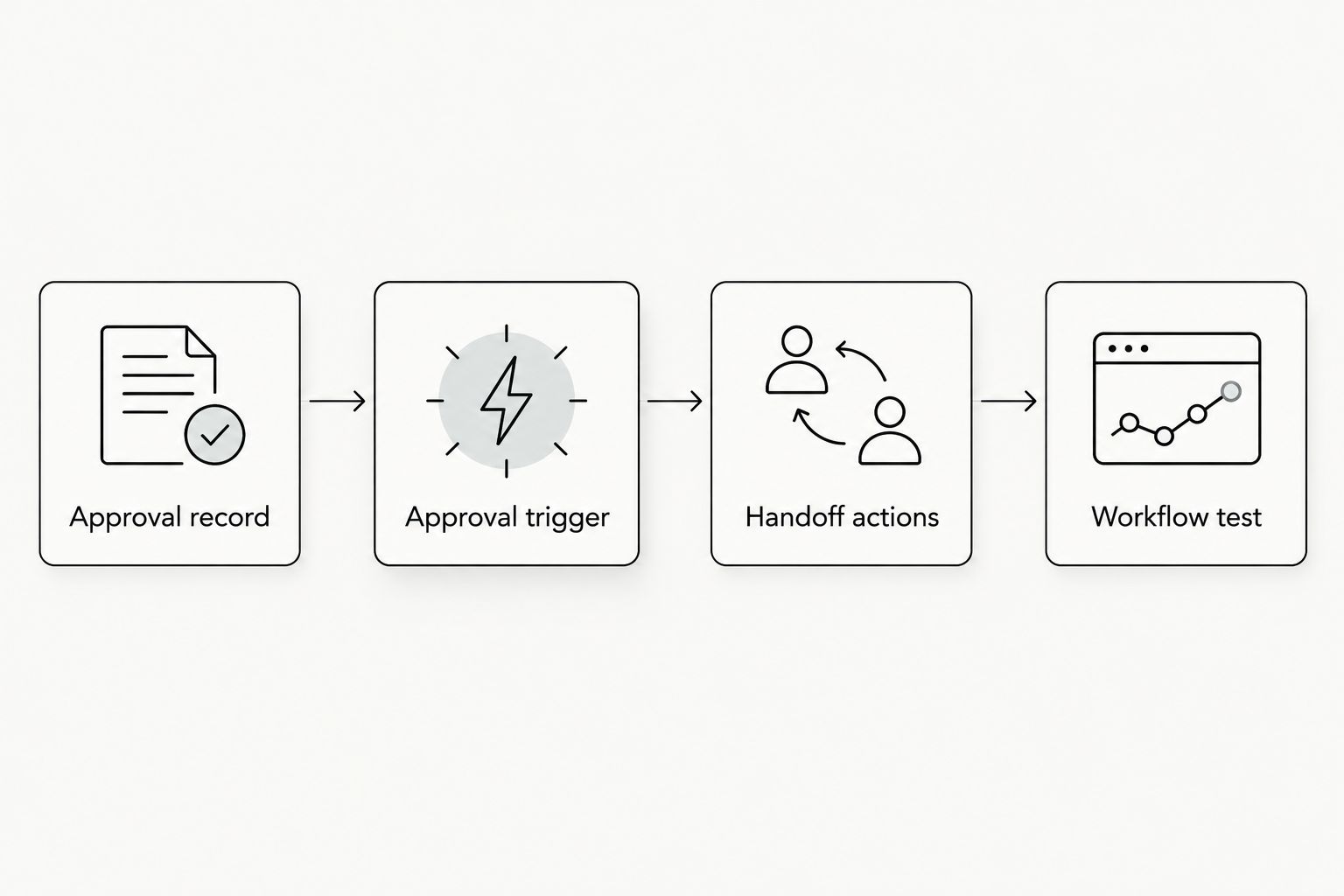
Approval record
Create a ticket that describes a specific deliverable, not the entire creator relationship. Keep creator contact details on the associated contact; keep asset approval details on the ticket.
- Open HubSpot settings and go to Properties. Select ticket properties and choose Create property.
- Use Property label and Field type to create the fields below. These are suggested custom labels, not built-in HubSpot approval fields.
- Create a ticket for a sample deliverable, such as a 30-second app onboarding demo. Give the ticket a title that includes the campaign, asset, and version.
- Populate the file and approval fields before changing the handoff status. Associate the creator contact when useful, but do not store the asset's approval state on that contact.
| Custom property | Suggested field type | Purpose |
|---|---|---|
| UGC asset ID | Single-line text | Identifies the underlying creative across versions |
| UGC version | Single-line text | Identifies the exact edit under review |
| UGC final asset URL | Single-line text | Stores the delivery link |
| UGC approval status | Dropdown select | Uses Pending, Changes requested, or Approved |
| UGC usage clearance | Dropdown select | Uses Pending, Cleared, or Blocked |
| UGC approved by | Single-line text | Records the reviewer |
| UGC approved on | Date picker | Records the approval date |
| UGC intended channel | Single-line text | States the permitted destination for this handoff |
| UGC handoff status | Dropdown select | Uses Not ready, Ready for handoff, or Handed off |
For example, a 2026 onboarding campaign might contain a 30-second demo and a 15-second cutdown. Treat those as separate assets. If either receives a replacement edit, create a separate version ticket rather than overwriting an approved file reference.
Expected result: You can open one ticket and identify the exact file, its approval evidence, and its intended destination without reading a message thread.
Approval trigger
Build a ticket-based workflow with property filters. The trigger must require the complete handoff state, not just an approval status.
- Open Automation, then Workflows. Select Create workflow and start a ticket-based workflow from scratch.
- Configure property-based enrollment using the conditions below. Combine every condition with AND, not OR.
- Leave re-enrollment disabled for this first version. A ticket represents one asset version and should receive one initial handoff.
- Keep existing tickets out of the initial enrollment when activating the workflow. Introduce approved test records deliberately before releasing the process to the team.
Require all of these conditions:
- UGC approval status equals Approved.
- UGC usage clearance equals Cleared.
- UGC handoff status equals Ready for handoff.
- UGC final asset URL is known.
- UGC asset ID and UGC version are known.
- UGC approved by and UGC approved on are known.
- UGC intended channel is known.
The final status change is your release switch. Reviewers can fill fields in any order while the ticket remains Not ready. Only an authorized reviewer should change it to Ready for handoff.
A known URL is not proof that a file opens. Make the access check part of the reviewer's checklist; do not treat a populated text field as a permissions test.
Expected result: An approved ticket with missing usage clearance stays out. A complete, deliberately released ticket qualifies for enrollment.
Handoff actions
The task should contain enough information for the receiving teammate to act without asking which video was approved. Keep the initial routing simple: assign the workflow's tasks to a named marketing operations user.
- Add Create task to the workflow. Use a clear task title, such as UGC handoff: approved asset ready.
- Set Assigned to to the person responsible for receiving approved assets. Set Due date according to your team's agreed handoff schedule; do not confuse that date with publishing authorization.
- In Notes, include the enrolled ticket's asset ID, version, final asset URL, intended channel, approval date, and approver. Use property values from the enrolled ticket instead of typing sample values into the live action.
- Add Edit record after task creation. Set UGC handoff status to Handed off on the enrolled ticket.
- Review the action sequence before activation. Task creation comes before the status update so the workflow does not deliberately mark a handoff complete before attempting the task.
Tell the recipient what completion means. For example: open the approved file, confirm the destination, and move the asset into the channel team's production queue. Completing this task should not mean that an ad is live or that a post has been published.
For UGC Scout's done-for-you creator video production and posting, keep your internal routing separate from the agency's delivery responsibilities. This configuration does not establish who owns publishing, paid distribution, or account access.
Expected result: The receiving user gets an actionable task, and the ticket records that the handoff workflow has processed it.
Workflow test
Run a controlled 2026 rollout before enrolling production assets. Use 3 test tickets to exercise both the successful path and the blocked paths.
- Create a complete ticket with Approved, Cleared, and Ready for handoff. Confirm that it creates a task and reaches Handed off.
- Create an otherwise complete ticket with usage clearance set to Pending. Confirm that it does not create a task.
- Create an otherwise complete ticket without a final asset URL. Confirm that it does not create a task.
- Open the successful task as the receiving user. Check the actual file, version, channel, assignment, and approval evidence.
- Inspect workflow enrollment and action history. Resolve errors before introducing production records.
The acceptance target for this test is 1 task from 3 test tickets. That is a test expectation, not a performance claim. If the blocked tickets create tasks, stop and correct the enrollment logic.
Expected result: Complete approvals generate a handoff. Incomplete approvals remain visible on their tickets without creating downstream work.
Hand off a revised video after fresh approval
Use the same workflow for replacement edits, but give the replacement its own ticket. This keeps the previous approval attached to the previous file.
Suppose a reviewer approves a demo, then requests a changed product claim. The old approval does not cover the replacement just because the creator reused the filename.
- Create a new ticket with the same UGC asset ID and a different UGC version.
- Start the approval and usage-clearance fields at Pending. Keep handoff status at Not ready.
- Link the new file and obtain approval for that specific edit.
- Set Ready for handoff only after the required fields are complete.
- Tell the receiving teammate which previous version the replacement supersedes. Review any open task for the older version separately.
Best for revised deliverables: separate version tickets preserve a clear approval trail. The trade-off is more records to manage, but the alternative is an ambiguous approval attached to a changing file.
This workflow creates the new handoff. It does not automatically withdraw an older scheduled post, stop an ad, or cancel a previous task.
Troubleshooting
An approved video never enrolls
Check every AND condition on the ticket, including the release status. Approved alone is intentionally insufficient. Then inspect workflow history to distinguish an ineligible record from an action failure.
An older file appears in the task
Check whether the task action contains a hard-coded sample link. Replace it with the enrolled ticket's property value. Also verify that the delivery link points to a version-specific file rather than a folder where files are routinely replaced.
The receiving teammate cannot open the asset
Correct sharing permissions in the file host and test access as the recipient. HubSpot storing a URL does not grant access to the destination. Keep the task open until the approved file is accessible.
Duplicate tasks appear
Check for another active workflow, repeated manual enrollment, or duplicate version tickets. Keep re-enrollment disabled for the baseline workflow. A connected approval source also needs a stable asset-and-version key so repeated events update the intended record instead of creating another ticket.
The task exists, but the ticket still says Ready for handoff
Inspect the Edit record action for an error. Confirm the existing task before retrying or manually enrolling the ticket again. Repair the status without creating another handoff task.
Customize your workflow
Expand your 2026 process only after the baseline passes its blocked-path tests. Add channel-specific routing when different teams genuinely own different destinations; keep a fallback recipient for records that do not match a route.
For UGC Scout agency engagements, agree on who supplies approval evidence and who maintains HubSpot records. Do not assume done-for-you production also means done-for-you CRM configuration.
If reviewers work in chat, use the influencer content approval and Slack workflow to plan that adjacent process. Keep the approval decision and the handoff trigger distinct, even when a notification connects them.
FAQ
How do I build a UGC approvals HubSpot workflow?
Create a ticket per asset version, require approval and usage-clearance fields, and trigger an assigned task when the ticket is ready for handoff. Confirm that your account supports ticket-based workflows before configuring it.
Should I store UGC approvals on creator contacts?
Store asset approvals on asset-version tickets rather than a single creator contact property. One creator can have multiple videos with different approval states.
Does HubSpot approve the video automatically?
This workflow does not approve videos automatically. A reviewer or connected approval system supplies the decision, and HubSpot routes the approved record.
Can I connect an external UGC approval tool?
You can use a connector or custom integration that supports the required source events and HubSpot ticket operations. Verify those specific capabilities and map the asset ID, version, approval evidence, and file link.
What happens when a creator uploads a revised video?
Create a separate version ticket and require fresh approval before handoff. The previous version's approval must remain attached to the previous file.
Does an approved UGC video mean I can run paid ads?
Approval of the video does not establish paid-ad usage rights. Record usage clearance for the intended destination and check the applicable agreement before releasing the asset.
Does this workflow publish videos to TikTok or Meta?
No, this workflow creates an internal handoff task. Publishing and ad activation need separate processes, permissions, and destination-specific checks.
One last thing
A replaced file can make an unchanged approval record misleading. For your 2026 approval process, use version-specific delivery links and never silently replace the file behind an approved ticket. The useful record is not simply approved; it is this version, approved by this person, for this destination.