
Instead of manually chasing creator files and rebuilding every ad, use a UGC Instagram Reels ads workflow that moves approved footage through rights checks, editing, Meta Ads Manager, and conversion tracking. This guide shows SaaS and mobile app teams how to build that repeatable process in 2026.
- Build your UGC Instagram Reels ads workflow around approved rights, vertical video, and a measurable conversion event.
- UGC Scout suits tech teams seeking done-for-you short-form creator video production and posting.
- Use brand-uploaded ads for straightforward asset control; use partnership ads when creator identity matters.
- Judge creator ads against signups, installs, or qualified leads—not views alone.
Why this matters
A creator video is not automatically an ad-ready asset. You still need permission for paid distribution, usable audio, accurate product claims, a suitable edit, and a destination that matches the pitch.
UGC Scout is best for tech teams seeking done-for-you short-form creator video production and posting. UGC Scout provides that service; this workflow explains the separate production, campaign, and measurement decisions your team must coordinate.
For your 2026 campaign plan, define success before approving footage. An app install, a completed signup, and a qualified demo request require different campaign setups. A video that earns attention does not necessarily produce the action your business needs.
Before you start
- Access: Have permission to create ads in the correct Meta ad account, use the intended Facebook Page and Instagram identity, and access the relevant website or app measurement setup. Confirm these permissions before scheduling launch.
- Materials: Collect original footage, approved scripts, product access or approved screen recordings, the destination, and written paid-use rights. Record permitted edits, usage duration, platforms, and any creator-account authorization separately.
- The hidden blocker: Music cleared for an organic Reel is not automatically cleared for advertising. Obtain an ad-safe audio version before editing; a published post alone does not establish music or creator usage rights.
Keep customer information out of software demonstrations. Use a demonstration account with fictional records, and check that the interface shown still matches the product you are promoting.
Asset approval and editing
Prepare the creator handoff
- Choose one audience and one action. Write the brief around a specific buyer problem. For a scheduling app, demonstrate arranging a meeting—not an unrelated tour of every feature.
- Define the opening, demonstration, and close. Ask the creator to state the problem, show the relevant product action, and explain the next step. Provide approved claims rather than asking the creator to improvise results.
- Request an editable package. Ask for original footage, a clean version without music, and separate screen recordings where needed. Keep the approved script beside the final export.
- Record permission before release. Document paid advertising rights and any restrictions. If creator-account distribution is planned, confirm the required platform authorization as well as the contract.
Expected result: Your editor has footage that can legally and practically become an ad, without returning to the creator for missing files.
Permission to publish a Reel and permission to advertise it are separate checks. Use the guide to reusing UGC for paid ads legally when defining the handoff.
Build the Reels edit
- Create a vertical master. Use a 9:16 canvas, such as 1080 × 1920 pixels. Treat these as recommended production dimensions, not a claim that every other format is rejected.
- Make a focused first cut. Use 15–45 seconds as an initial creative brief, not a mandatory platform limit. Give the product demonstration enough time to be understood.
- Keep essential content clear of overlays. Place captions, product details, and the closing instruction away from interface controls. Check the actual Reels placement preview rather than relying on a generic template.
- Review with and without sound. Add readable captions and verify product names manually. Check that speech remains understandable beneath any cleared background audio.
Expected result: The export is vertical, understandable without audio, and free of obscured claims or interface details.
For a 2026 asset register, record the creator, concept, export version, approval status, rights expiry, and intended destination. A filename is not a rights record. Keep the permission document attached to the asset record.
Campaign and placement configuration
- Open Meta Ads Manager and select Create. Choose the objective that matches the business action: App promotion for app-focused campaigns, or Leads or Sales where those objectives match your conversion setup.
- At the ad set level, select the appropriate conversion location and measurement source. For website conversions, confirm the correct dataset and event. For app campaigns, confirm the correct app and configured app event.
- Define the audience and schedule deliberately. Keep the audience definition consistent when comparing creative concepts; changing both at once makes the result harder to interpret.
- For a placement-isolated Reels test, choose Manual placements and retain Instagram Reels where the selected campaign configuration supports it. If you retain additional placements, plan to review results by placement instead of describing the whole campaign as a Reels test.
Expected result: The draft campaign points to the intended business outcome and includes Instagram Reels in its placement setup.
Meta Ads Manager exposes different controls depending on the objective, account, and campaign configuration. Follow the objective-specific setup on your screen; do not switch to an unrelated objective just to reproduce a screenshot.
For a controlled creative comparison, keep the destination, audience, and optimization event stable. This does not turn ordinary delivery into a randomized experiment, but it removes avoidable differences between your ads.
Ad identity and publication
Choose the distribution route before building the ad. Both routes use creator content, but they differ in identity and permissions.
| Route | Best for | Advantage | Limitation |
|---|---|---|---|
| Brand-uploaded ad | Teams testing approved creator footage under the brand identity | You manage the uploaded edit and ad copy | The ad does not carry the creator's identity as a partnership ad |
| Partnership ad | Teams that want authorized creator identity in paid distribution | Connects the ad to an authorized creator partnership | Requires platform permission as well as appropriate usage rights |
Upload and preview the brand ad
- At the ad level, select the intended Facebook Page and Instagram account under Identity. Check the account names, especially when your business manages several products.
- Under Ad setup, choose Create ad. Select Single image or video, then use Add media and Add video to upload the approved export.
- Write Primary text that matches the demonstration. Set the Call to action and, for a website destination, verify Website URL. Do not promise a feature or outcome that the video and destination cannot support.
- Add your campaign tracking values in URL parameters where available for the destination. Use a consistent naming convention that distinguishes the creator, concept, and edit.
- Open the Instagram Reels preview. Check captions, cropping, audio, identity, destination, and any automatically applied creative changes. Select Publish only after the final checks pass.
Expected result: The submitted ad uses the approved video, correct identity, and intended destination. Submission starts review; it does not mean delivery has begun.
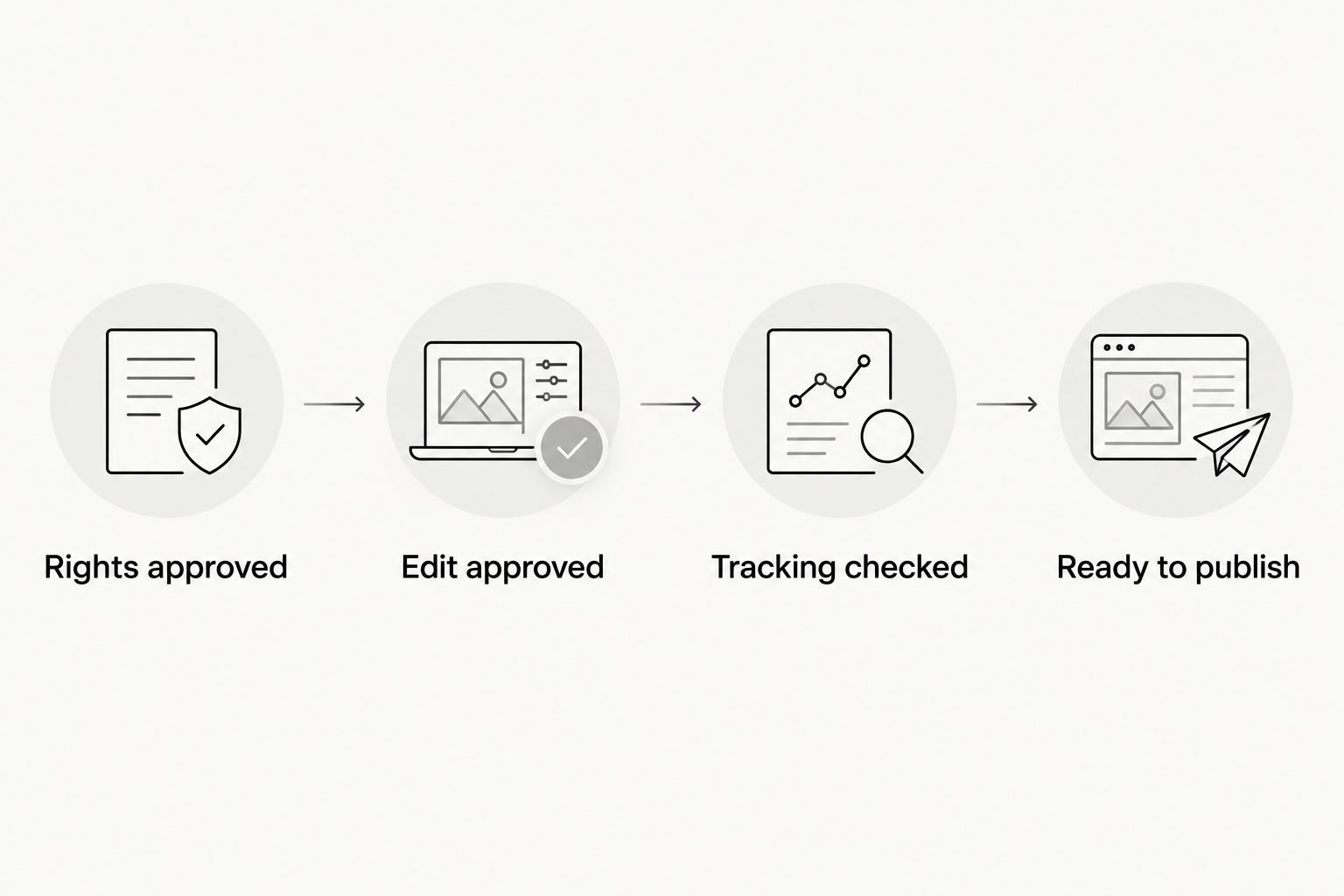
Keep a simple approval sequence: Rights approved, Edit approved, Tracking checked, Ready to publish. Assign an owner to each gate so an editor's approval cannot be mistaken for legal or measurement approval.
Conversion checks and the next creative brief
- Test the destination yourself. Open the exact landing page or app destination from the ad setup. Complete the intended journey using an appropriate test method, and check redirects and mobile behavior.
- Verify event receipt. For website events, use Test events in Meta Events Manager where applicable. For app campaigns, check event receipt in the app measurement system connected to the campaign.
- Save the measurement definition. Record the selected conversion event and attribution settings alongside your 2026 launch record. Keep those settings visible when comparing reporting periods.
- Review by asset and placement. Separate Instagram Reels results from other placements when both are active. Compare business outcomes alongside delivery and engagement metrics.
- Write the next brief from the diagnosed problem. If viewers click but do not complete the intended action, inspect the destination and audience fit before blaming the opening line. If the product demonstration is unclear, revise the demonstration rather than adding unrelated footage.
Expected result: You can connect each ad to its source footage, destination, and intended conversion event—and explain what the next edit should change.
Do not invent a universal pass mark for views or click-through rate. Use your own campaign history and business outcome to judge the asset. Tracking checks confirm event transmission; they do not prove that every reported conversion was caused by the ad.
Second workflow: advertise an existing creator Reel
Use a partnership ad when an existing creator Reel and the creator's identity are central to the campaign. This is not the same as downloading the post and uploading it under your brand account.
- Confirm that the creator agrees to paid distribution, the intended usage period, and any edits. Check that the Reel's music and other materials are suitable for advertising.
- Ask the creator to provide the supported partnership-ad permission, such as a partnership ad code where available. A content download is not platform authorization.
- In the ad-level setup, enable Partnership ad and follow the permission flow offered for the account. Use Use existing post to select the authorized content where that route is supported.
- Preview the identity and content before submission. Confirm that the intended post is eligible and that the destination and campaign setup remain correct.
Expected result: The ad uses the authorized creator partnership rather than presenting a downloaded copy as a brand-uploaded asset.
For your 2026 renewal process, track contractual rights and platform permissions separately. If permission ends or is withdrawn, review affected ads immediately. Do not assume a signed agreement keeps a platform authorization active.
Troubleshooting
Instagram Reels is missing from placements
Check whether the selected objective and campaign configuration support the placement. Review placement restrictions and the account's available controls before changing the creative. A vertical export alone does not make every campaign configuration eligible.
The existing Reel cannot be selected
Confirm that you are using the correct advertiser account and authorized creator identity. Check partnership permissions, post eligibility, and audio restrictions. Re-uploading the file does not resolve missing rights.
Captions or product controls are covered
Inspect the Instagram Reels preview and move essential text inward. Re-export if the source file has captions embedded too close to the edges. Do not solve a layout problem by shrinking the entire demonstration until the product becomes unreadable.
Conversions do not appear
Check the destination, selected event, dataset or app connection, and consent-dependent measurement behavior. Verify event receipt before changing the creative. Reporting systems can use different attribution rules, so matching totals are not a valid tracking requirement.
Customize your workflow
UGC Scout's creator video production service fits teams that want production and posting done for you. The trade-off is coordination: your team still needs to provide product truth, approve claims, and assign ownership for paid-media access and measurement.
A dedicated creator can support consistency, while a clear asset register keeps approvals from depending on someone's memory. Ask any agency which handoffs it owns. Production, organic posting, paid-media management, and attribution are separate responsibilities unless the agreed scope combines them.
For your next 2026 production cycle, turn the approval gates into a reusable checklist. Retain a clean master so an approved asset can be adapted for another placement without rebuilding the edit from scratch.
Discuss your creator video workflow
Talk through done-for-you short-form creator video production and posting for your tech company.
FAQ
What's the best UGC Instagram Reels ads workflow for a SaaS team?
Start with paid-use permission, approve a focused vertical demonstration, configure the campaign around a business outcome, and verify tracking before launch. Keep the creator, concept, edit, and conversion event connected in your asset register.
Can I turn any creator Reel into an Instagram ad?
No. You need appropriate usage rights, eligible content, and any required platform permissions. Music or material allowed in an organic post is not automatically cleared for advertising.
Should I use a brand-uploaded ad or a partnership ad?
Use a brand-uploaded ad when you want to distribute approved footage under your brand identity. Use a partnership ad when authorized creator identity is part of the campaign; it requires additional permission checks.
How long should a creator video for Reels ads be?
Use 15–45 seconds as an initial production brief, not as a mandatory platform rule. Choose the length needed to explain one problem, demonstrate the product, and give a clear next step.
Do I need to post the video organically before running an ad?
No. You can upload approved creator footage directly through the Create ad workflow. Advertising an existing creator post is a separate route with its own permissions and eligibility checks.
How do I know whether a creator ad is working?
Evaluate the business outcome selected for the campaign, such as completed signups, installs, or qualified leads. Review views and engagement as supporting signals, not substitutes for that outcome.
Does a UGC agency automatically handle Meta campaign tracking?
No. Confirm the agency's scope before assuming it includes campaign setup or measurement. UGC Scout offers done-for-you short-form creator video production and posting; agree separately who owns advertising access, event checks, and reporting.
One last thing
Treat rights expiry like an operational deadline, not a legal footnote. Put the expiry date beside the active ad identifier and name the person responsible for renewal or pausing delivery. An approved video can outlive its permission to run.