Instead of manually rebuilding creator clips for every campaign, turn UGC for YouTube ads into a repeatable workflow: clear the rights, edit for the placement, upload the approved video, and connect it to a measured conversion. This 2026 guide covers the handoff from creator footage to a launch-ready YouTube pre-roll ad.
- UGC Scout suits tech teams that want creator video production and posting done for them.
- UGC for YouTube ads needs paid-media permission, placement-specific editing, and a working conversion action.
- For skippable pre-roll, show the problem and product before viewers can skip after five seconds.
- Use separate edits for skippable in-stream ads and bumper ads; one cut does not fit both.
Why this matters
A creator post and a YouTube ad have different jobs. A post can build toward a reveal. A pre-roll ad interrupts another video, so the opening needs to make the product relevant immediately.
UGC Scout is best for tech teams that want short-form creator video production and posting done for them. Your internal team still needs a clear owner for ad permissions, campaign configuration, and conversion tracking. Outsourcing production does not replace those decisions.
For a SaaS product, show the task the software solves. For a mobile app, show the useful action inside the app. Keep the creator's explanation, but remove any introduction that delays the demonstration.
The workflow below produces a documented creative handoff. It does not treat creator enthusiasm as evidence of campaign performance.
Before you start
- Access: Have permission to upload videos to the intended YouTube channel and create ads in the Google Ads account. Identify an eligible video campaign and confirm its supported ad formats before editing.
- Materials: Collect the original footage, approved product claims, destination page, creator agreement, and permission covering paid advertising on YouTube. Include music, screen recordings, and other third-party assets in that check.
- The gotcha: A usable organic post is not automatically a usable advertisement. Music permissions can differ between organic posting and paid advertising. Replace uncleared audio before the final export, not after uploading.
For this 2026 setup, name the person responsible for each approval. Give legal or compliance reviewers the exact script and footage, not just a general campaign description.
Also test the conversion action before launch. If your campaign aims to generate a trial signup, the action should record the completed signup rather than a landing-page visit. That distinction changes what you learn from the campaign.
Creative brief and usage permissions
- Choose one outcome. Write the action you want the viewer to take: complete a signup, request a demo, or finish an app installation. Match the destination to that action. Do not send every audience to the homepage by default.
- Choose one product task. Ask the creator to demonstrate a specific action in the software or app. A broad product tour makes it harder to connect the opening problem to the final call to action.
- Document the permission scope. Confirm paid-media use, editing rights, intended territories, usage term, and any restrictions on the creator's likeness. Keep the agreement with the asset record.
- Separate experience from claims. Keep genuine personal observations distinct from measurable product promises. Remove unsupported claims about speed, results, security, or customer outcomes.
- Create the handoff record. Include the source filename, creator permission, approved script, destination, conversion action, and reviewer. These are production fields you define, not Google Ads settings.
Expected result: You have an approved brief and a traceable permission record. An editor can identify what to show, what to remove, and which claims are allowed without asking the creator to repeat the assignment.
For example, a SaaS brief can ask a creator to demonstrate assigning a task and finding its status. That is clearer than asking for a testimonial about being more productive. Use only actions your actual product supports.
UGC Scout provides done-for-you short-form creator video production and posting. When evaluating that service for YouTube ads, make paid-media permissions and delivery specifications part of the brief. Do not assume that posting permission covers every advertising use.
Placement-specific edits
- Select the intended format. For this worked example, prepare a 30-second skippable in-stream edit. Treat that length as your production choice, not a universal requirement.
- Front-load the demonstration. Put the problem and a recognizable product action into the opening five seconds. Skippable in-stream viewers can skip after five seconds; a long greeting spends the part of the ad they must watch.
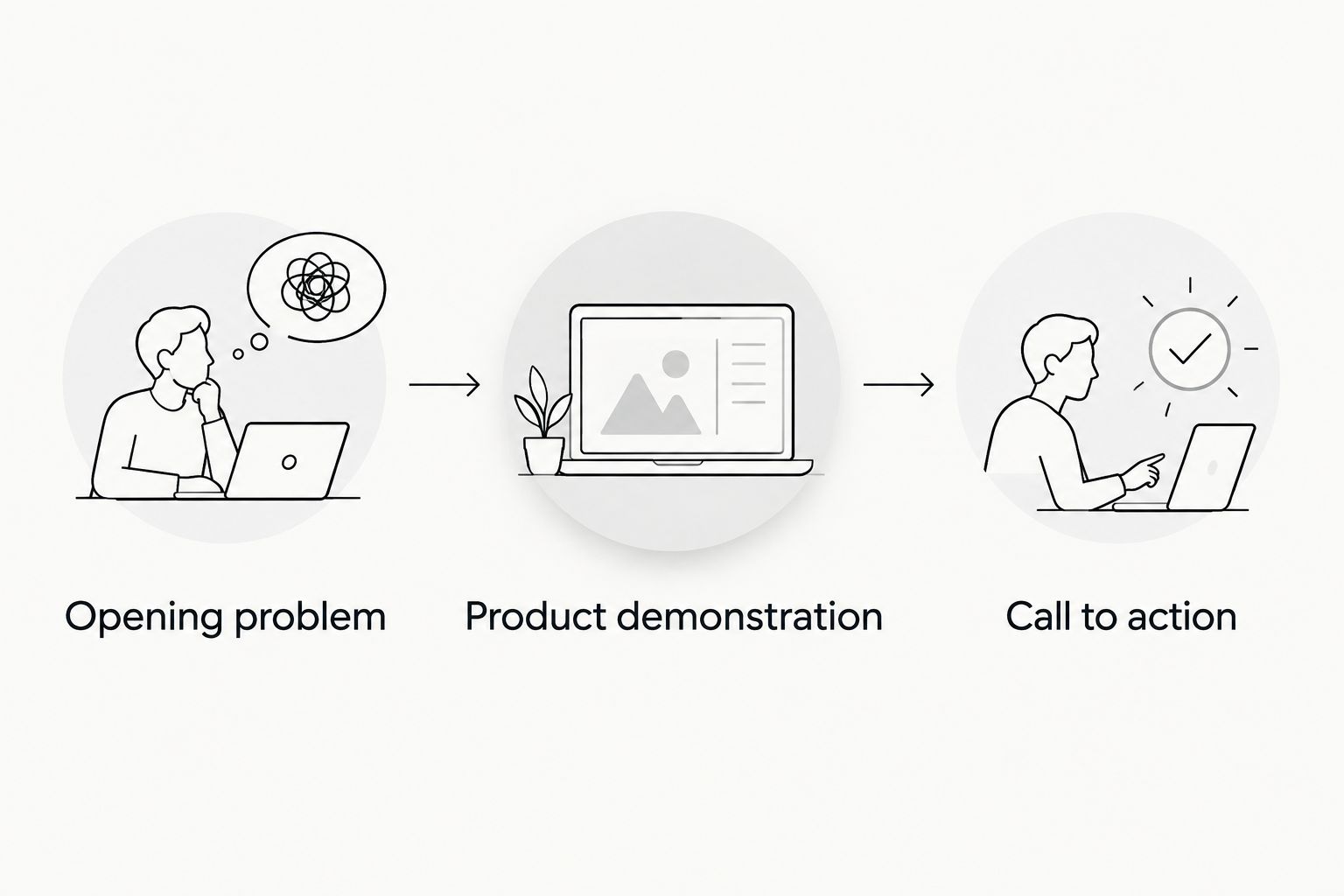
- Build a clear sequence. Use an opening problem, a product demonstration, and one call to action. Keep the creator's language natural. Remove repeated explanations and unrelated features.
- Prepare the frame. For a landscape version, use a 16:9 canvas, such as 1920 × 1080 pixels. Reframe the creator and demonstration deliberately rather than stretching vertical footage.
- Check the finished export. Watch the file on a phone and a larger screen. Check speech clarity, caption accuracy, readable interface details, and whether the spoken action matches the destination.
Expected result: The viewer understands the problem before the skip point, sees the product doing something useful, and hears a single next step. The exported file contains no unapproved claims or uncleared audio.
A talking-head clip alone can leave the viewer guessing what the app does. Add a readable screen recording when it explains the task. Remove personal information, account details, and notifications before capturing that recording.
Which edit should you prepare?
These options serve different creative jobs. Neither guarantees better results; choose the format that supports the message you can demonstrate honestly.
| Format | Best for | Advantage | Limitation | Editing decision |
|---|---|---|---|---|
| Skippable in-stream | A problem-and-demonstration message | Gives you room to explain a product task | Viewers can skip after five seconds | Put relevance and product context first |
| Bumper | A single reminder or narrow message | Forces a concise creative idea | Maximum length is six seconds | Build a dedicated short edit |
Use skippable in-stream when understanding the product requires a demonstration. Use a bumper when the message fits into six seconds without rushed speech or tiny text. Do not compress a full tutorial into a bumper.
YouTube upload and ad configuration
- Upload the approved export. In YouTube Studio, select Create, then Upload videos. Give the video an internal naming convention that identifies the concept and version without including private customer information.
- Set the video visibility. Under Visibility, choose Unlisted if you do not want the upload listed publicly on the channel. An unlisted video is accessible to anyone with its link; it is not a private review space.
- Check the processed video. Confirm that the uploaded version plays correctly and that YouTube has finished processing the quality you need. Inspect any copyright notices before proceeding.
- Open the eligible campaign in Google Ads. In the campaign's Ads area, use the plus button to create an ad and select the supported video-ad format. Paste the uploaded video's URL into the video selection field.
- Complete the destination fields. Enter the intended landing page in Final URL. Where the selected format provides Call-to-action and Headline fields, use wording that matches the video and destination. Keep within the limits shown in the editor.
- Review before saving. Confirm the selected video, destination, ad group, conversion setup, and campaign format. Preview the ad, then save it and check its review status before expecting delivery.
Expected result: Google Ads contains the intended video ad, with the correct destination and campaign context. Saving the ad is not the same as approval or delivery.
Google Ads creation paths differ by campaign objective and subtype. For a 2026 campaign, follow the format offered by the actual campaign editor rather than forcing instructions for another campaign type.
Also check placement coverage. A campaign that supports multiple video formats is not automatically restricted to pre-roll. Confirm the available controls before describing your campaign internally as a pre-roll-only test.
Conversion checks and launch controls
- Test the destination. Open the exact landing page used in Final URL. Complete the intended journey on mobile and desktop. Check redirects, consent behavior, form errors, and the confirmation state.
- Verify the conversion action. In Google Ads, open Goals, then Conversions, and inspect the action intended for the campaign. Confirm that the selected goal matches the business outcome, not merely a page visit.
- Record the creative baseline. Save the opening line, product task, call to action, and version identifier. Keep campaign changes separate from creative changes so the comparison remains interpretable.
- Define the review decision. Decide what evidence triggers a new opening, a landing-page correction, or a tracking investigation. Do not invent a universal conversion benchmark for an account with its own history.
- Launch with an owner. Assign someone to inspect ad status, delivery, destination behavior, and conversion recording. A saved creative needs an operating check, not just a production sign-off.
Expected result: You can distinguish an editing problem from a destination or measurement problem. The team knows which asset ran and what outcome the campaign was intended to record.
Compare creative versions under comparable campaign conditions. Changing the audience, bidding, destination, and video together prevents a clean explanation of the result. Keep a change log alongside the creative record.
Second workflow: refresh the opening, keep the demonstration
When an approved creator video has a useful demonstration, build a new opening rather than commissioning an entirely new explanation. This 2026 workflow keeps the production change narrow and the comparison easier to interpret.
Use the original opening as one version and a new problem-led opening as the other. Keep the demonstration, destination, and call to action consistent. Check that the existing permission covers the revised edit.
Upload the new export as a separate YouTube video and create a separate ad. Do not delete the original asset simply to make the library look tidy; preserve the version record needed to interpret earlier results.
Best for: Teams testing how they introduce an already-approved product task. The advantage is a focused creative change. The limitation is equally clear: a new opening cannot repair an irrelevant demonstration or a broken signup journey.
Treat the agency handoff the same way. Ask UGC Scout for a clearly defined creative revision, while your campaign owner handles the advertising test and measurement.
Troubleshooting
- The video cannot be selected for the ad. Confirm that the upload is not private, the URL identifies the intended video, and processing has completed. Inspect the campaign's supported format before exporting again.
- YouTube flags the music. Inspect the copyright notice and the rights documentation. Replace the audio with material cleared for the intended advertising use. Creator permission does not establish music ownership.
- The ad is disapproved. Read the specific policy reason in Google Ads. Correct the cited issue in the creative or destination, then follow the available review process. Do not repeatedly submit an unchanged ad.
- The product screen is unreadable. Replace a wide desktop recording with a tighter capture of the relevant action. Check the finished edit at phone viewing size, not only inside the editing timeline.
- Clicks appear, but the intended conversion does not. Test the full destination journey and inspect conversion diagnostics. Verify tracking before blaming the creator or replacing the script.
Customize your workflow
Expand the asset brief before expanding the channel list. Preserve the raw demonstration, separate voice and music where possible, and maintain a permission record for each creator. These habits make later edits easier to approve.
For a mobile app team, the next production task is a repeatable creator brief. Use the guide to hiring UGC creators for mobile app companies to plan that handoff. A dedicated creator is useful when you need consistent demonstrations, but every new product claim still needs approval.
If production is the bottleneck, separate it from campaign operations. UGC Scout offers done-for-you creator video production and posting; define the YouTube advertising deliverables before commissioning the footage.
FAQ
What's the best way to use UGC for YouTube ads in 2026?
Build a placement-specific edit from footage cleared for paid advertising. Show the problem and product early, then connect one call to action to a working destination and conversion action.
Can I use a creator's TikTok video as a YouTube ad?
Only use it after confirming the rights cover YouTube advertising and every included asset. Organic posting permission and platform music access do not establish paid-ad rights.
How long should a UGC pre-roll ad be?
Choose the length around the message and selected ad format. A 30-second skippable edit is the worked example in this guide, while bumper ads have a maximum length of six seconds.
Does the YouTube video need to be public?
A YouTube ad can use an unlisted video. Unlisted means anyone with the link can watch it, so remove confidential information before uploading.
Can I guarantee that my UGC runs only as pre-roll?
Do not assume that every video campaign runs only as pre-roll. Check the selected campaign subtype, supported formats, and available placement controls before launch.
Should I measure views or signups?
Measure the outcome that matches the campaign's purpose. For signup acquisition, verify the completed-signup conversion and use viewing metrics to investigate creative behavior, not replace that outcome.
Can a UGC agency handle this whole workflow?
Define the scope before assigning the workflow to an agency. Creator production, usage permissions, YouTube uploading, Google Ads operation, and conversion tracking are separate responsibilities; document who owns each one.
One last thing
Keep a clean master without platform-specific music, captions, or interface overlays. That file gives your editor room to build another placement-specific version without repairing an already compressed social post.
For your 2026 asset library, store the clean master beside the approved export and permission record. The next useful production request is specific: a new opening, a clearer demonstration, or a different call to action. “Make another UGC video” is not a brief.