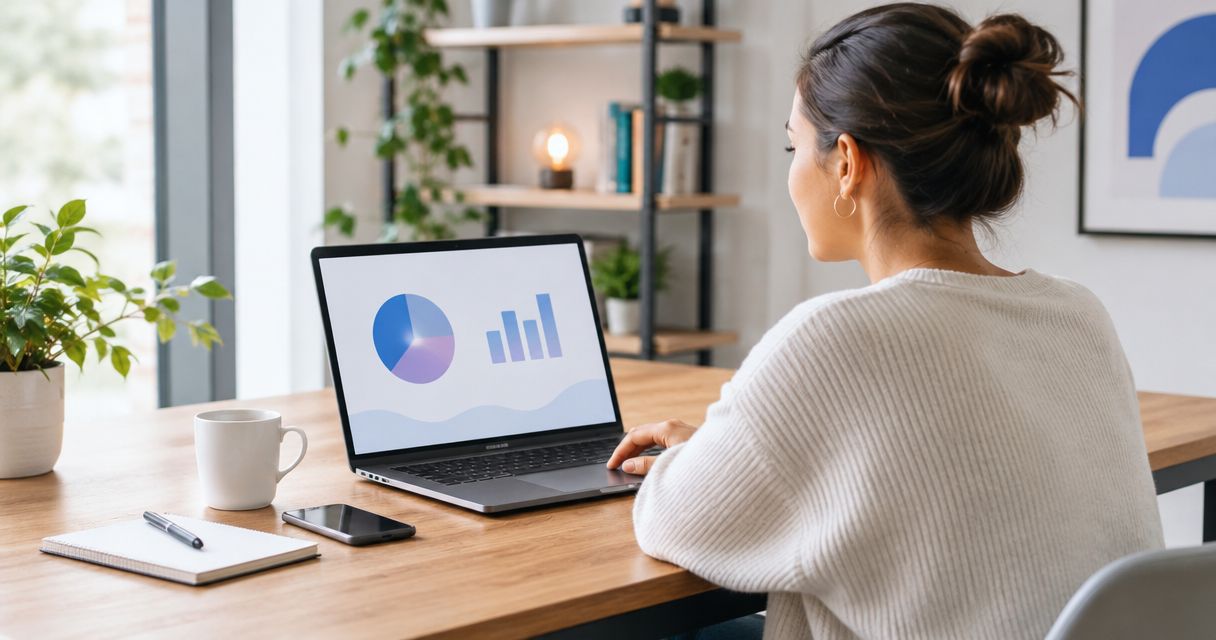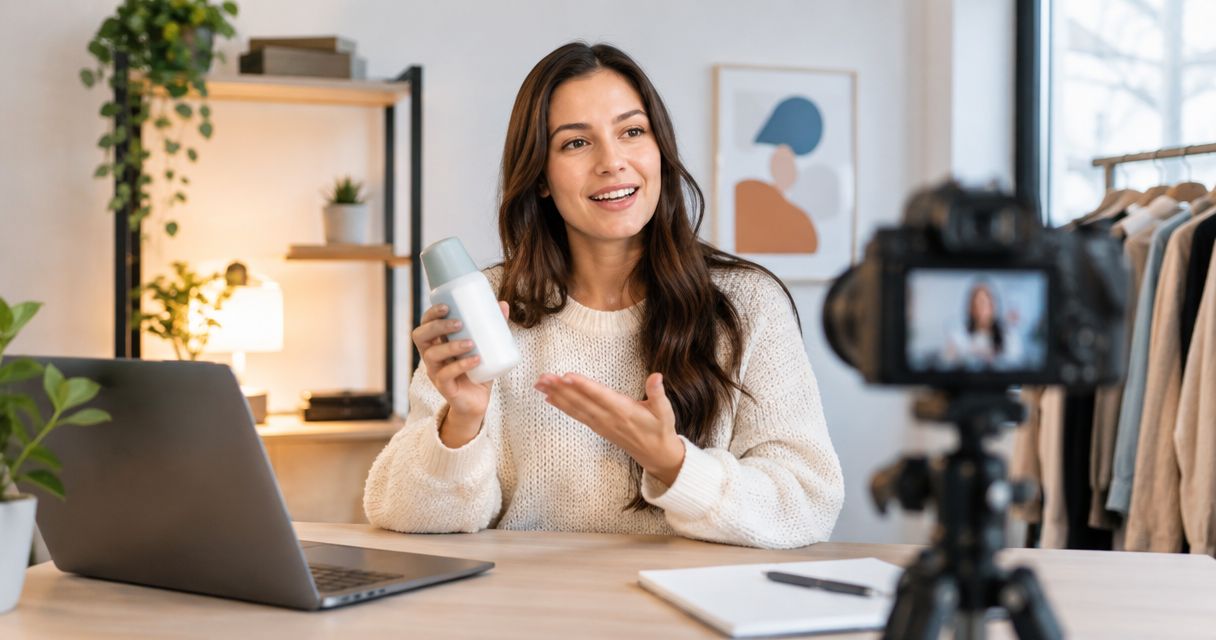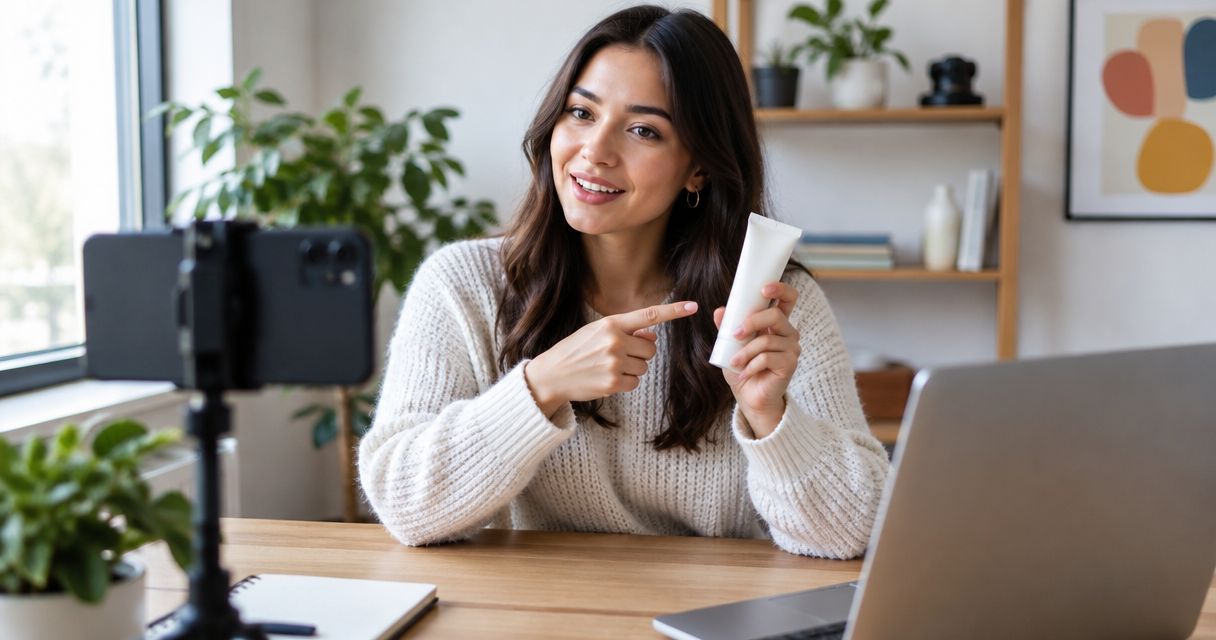
Yes. UGC creators can film demos without product access by combining their on-camera delivery with approved screen recordings supplied by your team. The limit is firsthand experience: creators can explain the workflow shown, but they cannot honestly present an untested product as something they personally use.
- A UGC creator can film a demo without product access using approved screen recordings and accurate narration.
- Use team-recorded footage for real product interactions; use the creator for explanation, hooks, and delivery.
- A scripted demo is not a customer testimonial. Remove personal-use claims unless they are true.
- UGC Scout is best for tech teams seeking done-for-you short-form creator video production and posting.
Why this matters
Your creator does not need a production login to explain a useful product workflow. Your viewer still needs to see evidence that the workflow exists. Separate who records the product from who presents it.
For your 2026 production brief, make that distinction explicit. Specify which screen recordings come from your team, which lines the creator delivers, and who checks product accuracy. Start with a clear software UGC creator brief, not a loose request to make the app look useful.
Can UGC creators film demos without product access?
Yes, provided someone with authorized access supplies the product footage. The creator can record a hook, narrate the steps, and explain the outcome while an editor combines those elements with the supplied recording. No creator login is required for that arrangement.
There are distinct production options. Choose based on what the audience needs to see, not just what is easiest to film.
| Production approach | Best for | What it provides | Main limitation |
|---|---|---|---|
| Team-recorded walkthrough | Showing an actual software workflow without creator access | Genuine product interactions paired with creator narration | The creator cannot independently explore or verify the workflow |
| Approved screenshots | Explaining a feature, interface, or result | Controlled visuals without exposing a live account | Static images do not demonstrate clicks, transitions, or processing |
| Restricted demo account | Content that needs creator-led interaction | Hands-on exploration within a controlled environment | This requires product access, so it is not an access-free approach |
Use team-recorded footage when the video promises to show how something works. Screenshots suit an explanation, but they are weaker evidence of a complete interaction. A restricted account is the alternative when the creator's own experience is central to the concept.
Do not turn missing footage into an editing problem. If the feature has not been recorded, obtain the recording or narrow the script.
Team-recorded footage: best for a genuine walkthrough
Ask a product owner to record the exact task the audience should understand. Start from the relevant screen, show the action, and capture the result. Use a demonstration workspace with fictional data rather than a customer account.
Give the creator the full sequence, not just a polished final frame. They need to understand what happens between the starting point and the outcome. Otherwise, the narration can imply that a result appears without setup or required inputs.
For example, a project-management demo might show a sample task being created and assigned. The creator can describe those visible actions without claiming to manage their own team in the product.
The benefit is control over what appears on screen. The drawback is that your team must supply usable footage and explain anything the recording leaves unclear. Recommend this approach when you can provide the product evidence but cannot share access.
Screenshots: best for a feature explanation
Screenshots work when the message concerns a visible interface element, a report layout, or a specific setting. Pair each screenshot with narration that describes only what it actually shows.
Do not animate a pointer across static screenshots to suggest an interaction that was never captured. If the sequence is illustrative, make that distinction clear. An illustrative sequence explains an idea; it does not prove the product completed a task.
The benefit is a small, controlled asset package. The limitation is motion: screenshots cannot establish how a transition behaves or what happens between screens. Choose screenshots for explainers, not as a substitute for missing workflow evidence.
Restricted access: best for firsthand creator experience
Some concepts require the creator to explore the product. A first-use reaction, usability walkthrough, or personal review depends on actual interaction. Supplied footage does not replace that experience.
If your security process permits it, provide a restricted demonstration account containing fictional records. Define what the creator can access, record, and publish. Remove access when the agreed work is complete.
Restricted access adds account administration and review work. It also gives the creator a basis for describing their own interaction. Choose this approach when firsthand experience is the substance of the video, not just its presentation style.
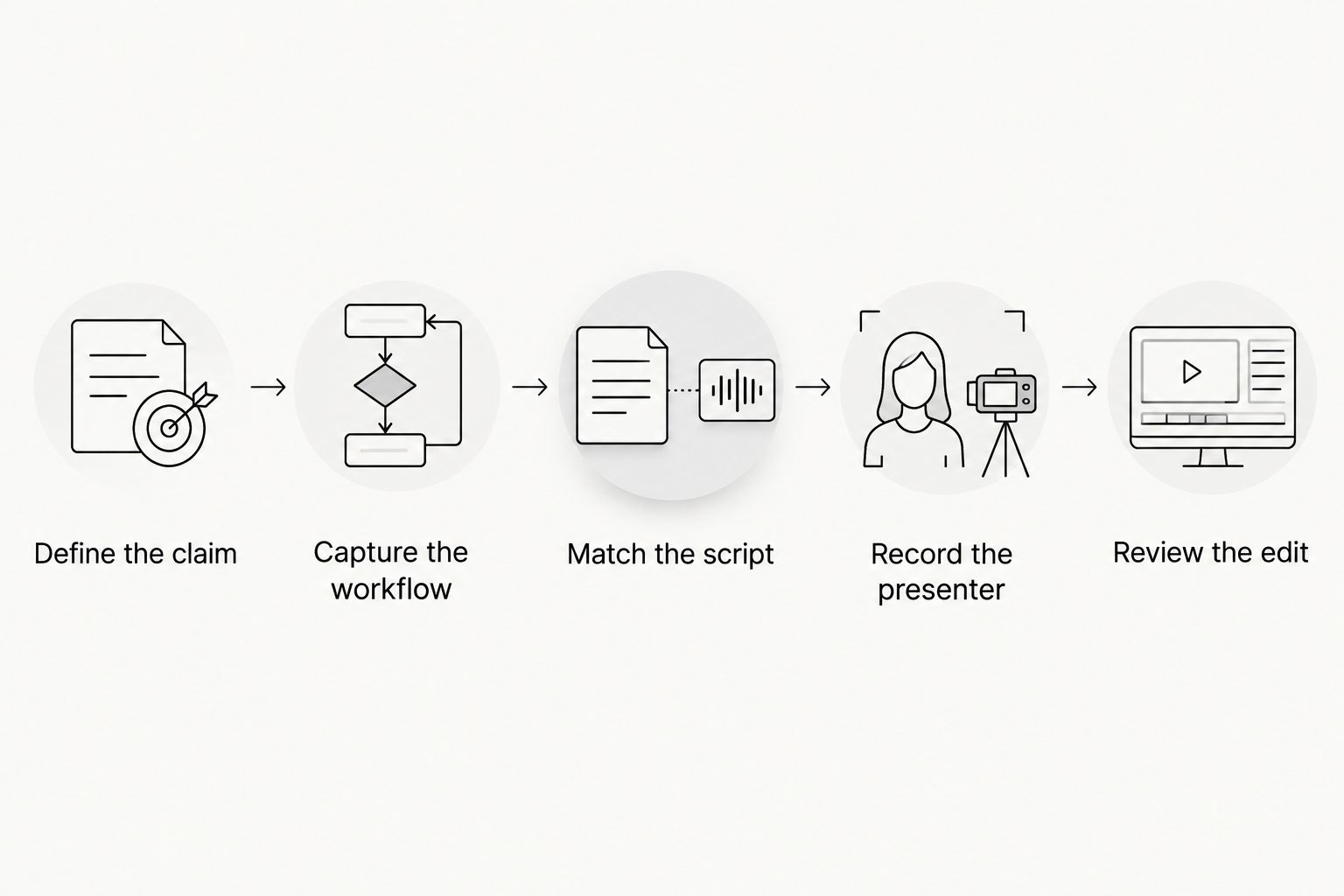
How to produce an access-free software demo
Use this sequence for your 2026 demo brief. Keep product verification with the team that knows the software, while giving the creator enough context to deliver the explanation naturally.
Define the claim
Write the single product action the video needs to demonstrate. A mobile app brief might focus on saving an item; a SaaS brief might focus on assigning a task. Avoid combining unrelated features into a short clip.
State what the video does not establish, too. Showing a reporting screen does not establish better business results. Showing a completed task does not establish how much time a customer saves.
Capture the workflow
Record the starting state, the action, and the visible outcome. Keep a clean source recording before adding captions, music, or creator footage. That source gives your reviewer a reference when checking the final edit.
Check the recording for names, email addresses, notifications, credentials, and customer information. Blurring one field is not enough if another screen exposes the same information.
Match the script
Write narration against the actual recording. If the interface says one thing and the script says another, resolve the difference before filming. Give the creator pronunciation notes and a plain-language explanation of unfamiliar terms.
Mark any line that describes personal experience. Replace it with a factual demonstration statement unless the creator can truthfully make that claim.
Record the presenter
Ask the creator to record the hook, explanation, and closing action. Specify where the product footage will appear so their gestures and delivery leave room for it.
A dedicated creator still needs context. Provide the buyer's problem, the relevant feature, and the approved claim. No login does not mean no briefing.
Review the edit
Review product accuracy separately from pacing and delivery. Check that each narrated action matches the screen, that cuts preserve the meaning of the workflow, and that captions do not introduce stronger claims.
Approve the completed video, not just the script. Editing can create an implication that was absent from the written brief.
What should an example video brief include?
Treat these durations as sample creative assignments, not promised delivery specifications. Each example uses supplied product footage and avoids invented personal experience.
- 15-second video: Show a single action and its visible result. Give the creator a short hook, one explanation, and a closing instruction.
- 30-second video: Add the starting problem and enough context to understand the workflow. Keep the demonstration centered on the same task.
- 45-second video: Include a prerequisite or limitation that affects the demonstration. Use the extra space to improve understanding, not to add unsupported claims.
For each assignment, name the intended placement, such as TikTok, Instagram Reels, or a Meta ad. Specify framing, captions, and the intended closing action in the brief rather than leaving those decisions to the editor.
Your 2026 asset package should also identify the approved footage version and the person responsible for product questions. That keeps a revised interface recording from being paired with an outdated script.
Why the access requirement varies
Whether a creator needs a login depends on the claim and the production method. Use these factors to decide before commissioning the video:
- Firsthand claims: A personal review requires actual experience. A narrated walkthrough can use supplied evidence.
- Workflow complexity: Hidden prerequisites need explanation, even when they are not shown in the final cut.
- Data sensitivity: Customer records and confidential information require a controlled recording process.
- Interaction requirements: Gestures, device permissions, or physical device behavior can require hands-on recording.
- Interface changes: Updated screens require a fresh accuracy check against the script and captions.
An NDA addresses confidentiality obligations. It does not replace permission controls or make every screen appropriate to publish. For that distinction, read the guide to NDAs for enterprise software demos.
Can a creator say they use the product without trying it?
No. A supplied recording does not establish personal use. A paid presenter can explain what the screen demonstrates without inventing a customer history.
For your 2026 script review, separate demonstration statements from endorsements. Describe the visible action directly. Do not add claims about daily use, business results, or personal preference unless they are true and supported.
A natural delivery is not permission to invent experience. Keep the language conversational while keeping the claim factual.
Is a screen recording enough to approve the final demo?
No. A screen recording supports the visual demonstration, but the finished video needs its own review. Check narration, captions, framing, cuts, and the closing instruction together.
Watch for omitted setup, results shown out of order, or edits that suggest an automated action was manual—or the reverse. A technically genuine recording can still support a misleading final sequence if the edit changes its meaning.
When should you give the creator product access instead?
Give the creator access when the concept depends on independent interaction or firsthand experience. That includes first-use reactions and reviews, rather than a presenter explaining supplied footage.
If access is not appropriate, change the concept. Commission a narrated demonstration instead of asking the creator to imitate an experience they did not have.
Where done-for-you production fits
UGC Scout offers done-for-you short-form creator video production and posting for tech companies. That fits SaaS and mobile app teams looking for production support rather than another creator-search task.
The boundary remains clear: an agency can organize creator content, but your product team must authorize the footage and validate product claims. UGC Scout is a fit for the production requirement; hiring an agency is not a substitute for internal product approval.
Before selecting a partner for your 2026 campaign, ask who supplies screen recordings, who answers product questions, and who approves the final edit. Put those responsibilities in the brief.
Explore done-for-you creator production
Review short-form creator video production and posting for your tech company.
FAQ
Can a UGC creator film a software demo without a login?
Yes. A UGC creator can present approved screen recordings supplied by your team without receiving a login. The video must not imply firsthand product use that did not happen.
What should I send a creator who cannot access our app?
Send an approved workflow recording, a matched script, pronunciation notes, and clear claim boundaries. Identify who will answer product questions and approve the finished video.
Can creators use screenshots instead of screen recordings?
Yes, for feature explanations and other static visuals. Screenshots do not demonstrate the interactions between screens, so do not present them as evidence of a complete workflow.
Does a creator need to try the product before giving a testimonial?
Yes, a testimonial about personal product experience must reflect genuine experience. Supplied footage supports a demonstration, not an invented customer story.
Is a restricted demo account the same as no product access?
No. A restricted demo account is product access with limits. Use it when the creator needs hands-on interaction and your security process permits that access.
Who should check a creator's software demo before publication?
A product-informed reviewer should check the completed video for accuracy. Review the screen footage, narration, captions, and editing together rather than approving only the script.
Can I use real customer data in creator demo footage?
Use fictional demonstration data instead of exposing real customer information. Check every visible screen, notification, and field before sending footage outside your team.
One last thing
A login is not the proof. The recorded product action is. If the audience needs to understand a feature, focus the brief on showing that feature accurately rather than making the creator appear to be a customer.
When evaluating UGC Scout, keep production needs and product approval responsibilities separate. Assign an internal owner for the footage before the creator records. That is the practical starting point for an honest access-free demo.